# A code cell: Python works out the expression and shows the result of the last line
2 + 3
5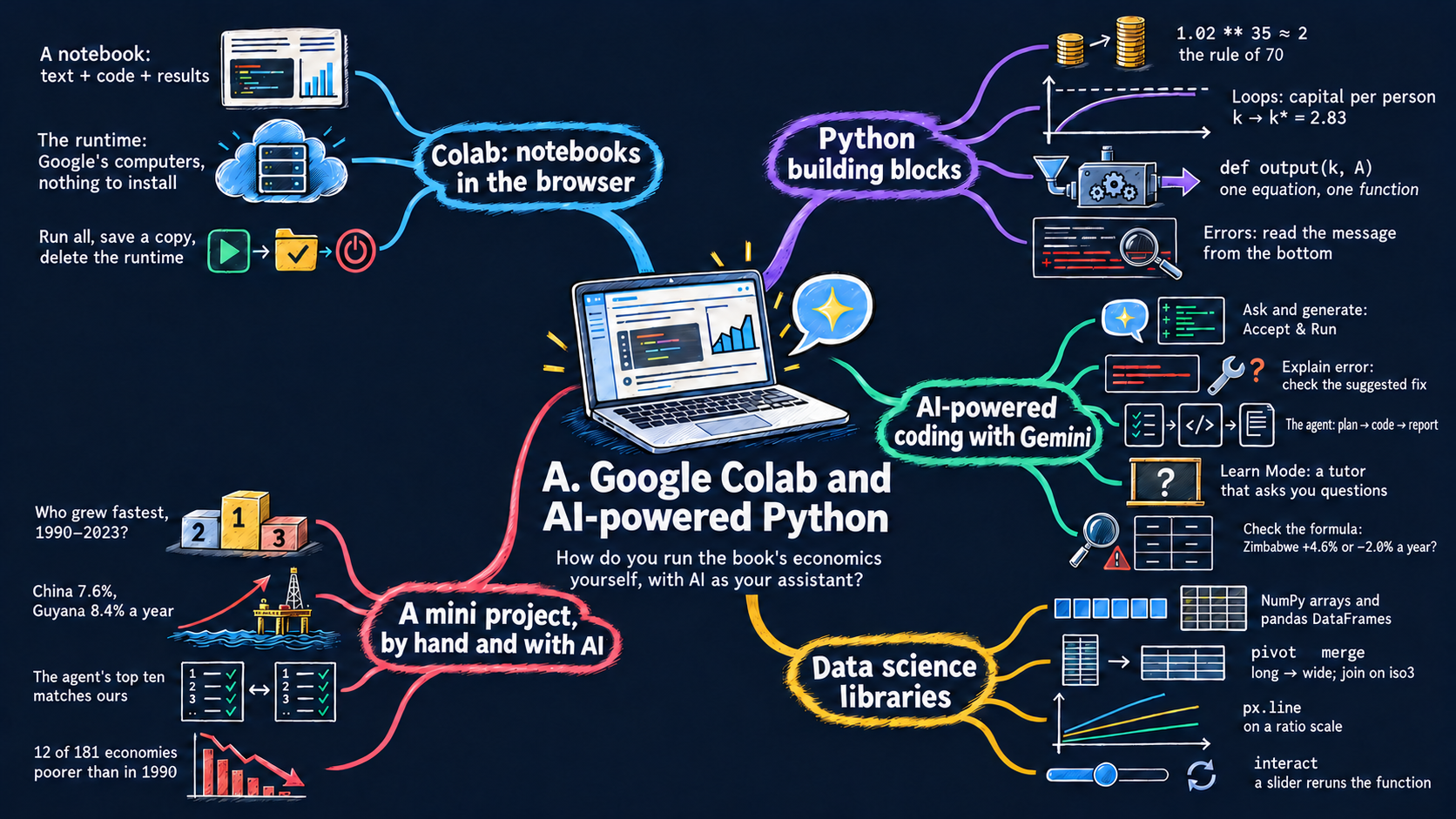


This book asks you to run economics, not only to read it. Everything happens in a web browser, with nothing to install, and with an AI assistant one click away. By the end of this appendix you will be able to:
if statements and functions, using examples from the book’s models;A notebook is a document that mixes three things: text (like this paragraph), code, and the results of that code (numbers, tables and charts). You read it from top to bottom. When you change a piece of code and run it again, its result updates right below it. The explanation, the computation and the evidence sit side by side, which makes notebooks a good way to learn.
Google Colab (short for Colaboratory) is a free Google service that runs notebooks inside your web browser. Its notebooks use the open Jupyter format (.ipynb files), the standard in data science. The code does not run on your laptop. It runs on a computer in one of Google’s data centres, called the runtime, and the results come back to your browser.
Colab also has an AI assistant built in: Gemini, Google’s large language model. You can ask it, in plain English, to explain a line of code, write a chart, fix an error or carry out a whole analysis. Section A.5 shows how, and why you still need to know some Python to use it well.
We now walk through a whole session with the Chapter 1 notebook, Introduction to Macroeconomics. The screenshots in this appendix were taken in a browser window of 1366 × 768 pixels, the screen of a typical 11-inch laptop, so they show what you will see on a small screen. They use Colab’s light theme; if your Colab looks dark, you can change it under Tools → Settings → Theme. They also come from a paid Colab account, which only adds the PRO label under the logo and more Gemini models to choose from; a free account looks the same otherwise. Google updates Colab often, so your menus may look a little different. Click any screenshot to see it at full size.
Step 1: open a notebook. Every chapter page on the book website starts with a mind map of the chapter, followed by a row of badges (Screenshot A.1). Open in Colab (1) opens the notebook in a new tab. Open Lecture Slides (2) opens the chapter’s slide deck, and some chapters also have Open Data Apps (3), a page with the chapter’s data charts and no code. If you are not signed in to a Google account, Colab asks you to sign in before you can run anything.
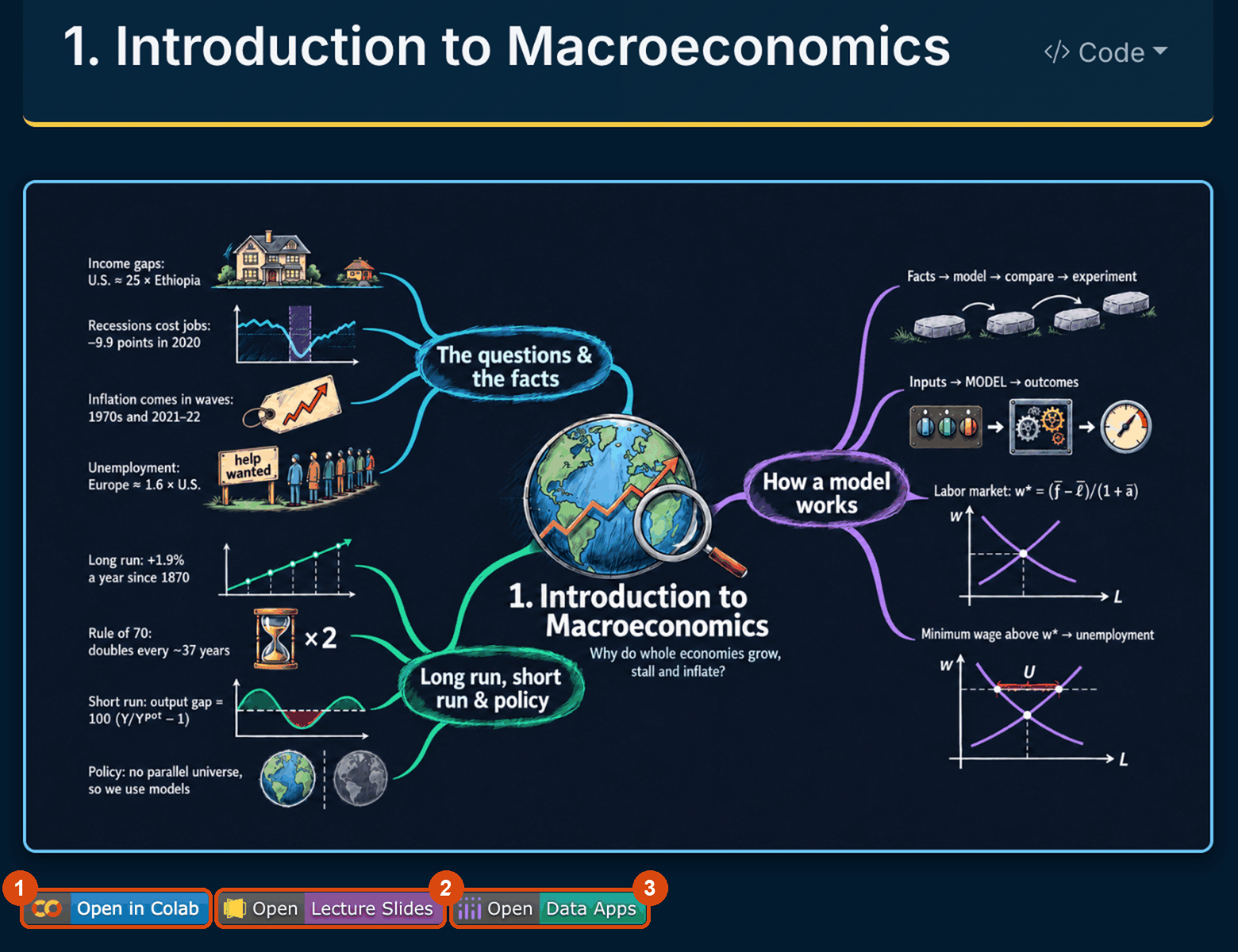
Screenshot A.1. The top of a chapter page on the book website: the mind map and the badges Open in Colab (1), Open Lecture Slides (2) and Open Data Apps (3).
Step 2: find your way around. Screenshot A.2 shows the Colab window. The numbers mark its main parts:
The blue star at the bottom centre of the window opens Gemini. We come back to it in Section A.5.
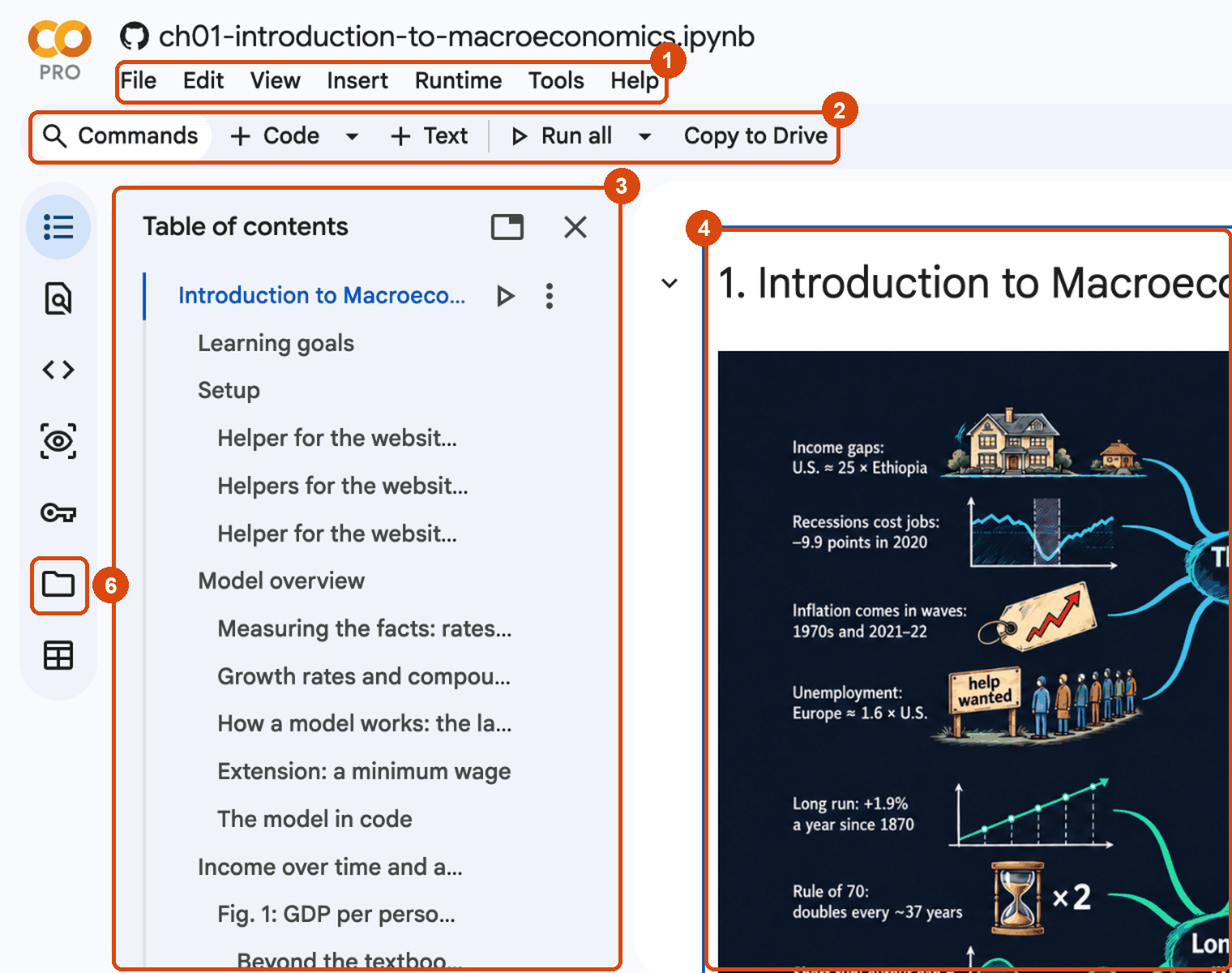
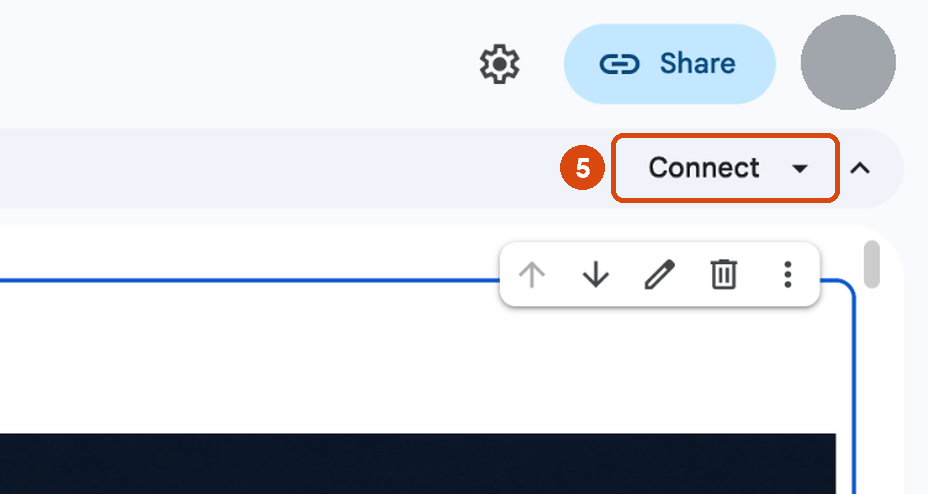
Screenshot A.2. The parts of the Colab window: the left side (1–4, 6) and the top right corner (5).
Step 3: run the whole notebook. Choose Runtime → Run all (Screenshot A.3), or press Ctrl+F9 (⌘+F9 on a Mac). Colab connects to a runtime and runs every code cell from top to bottom.
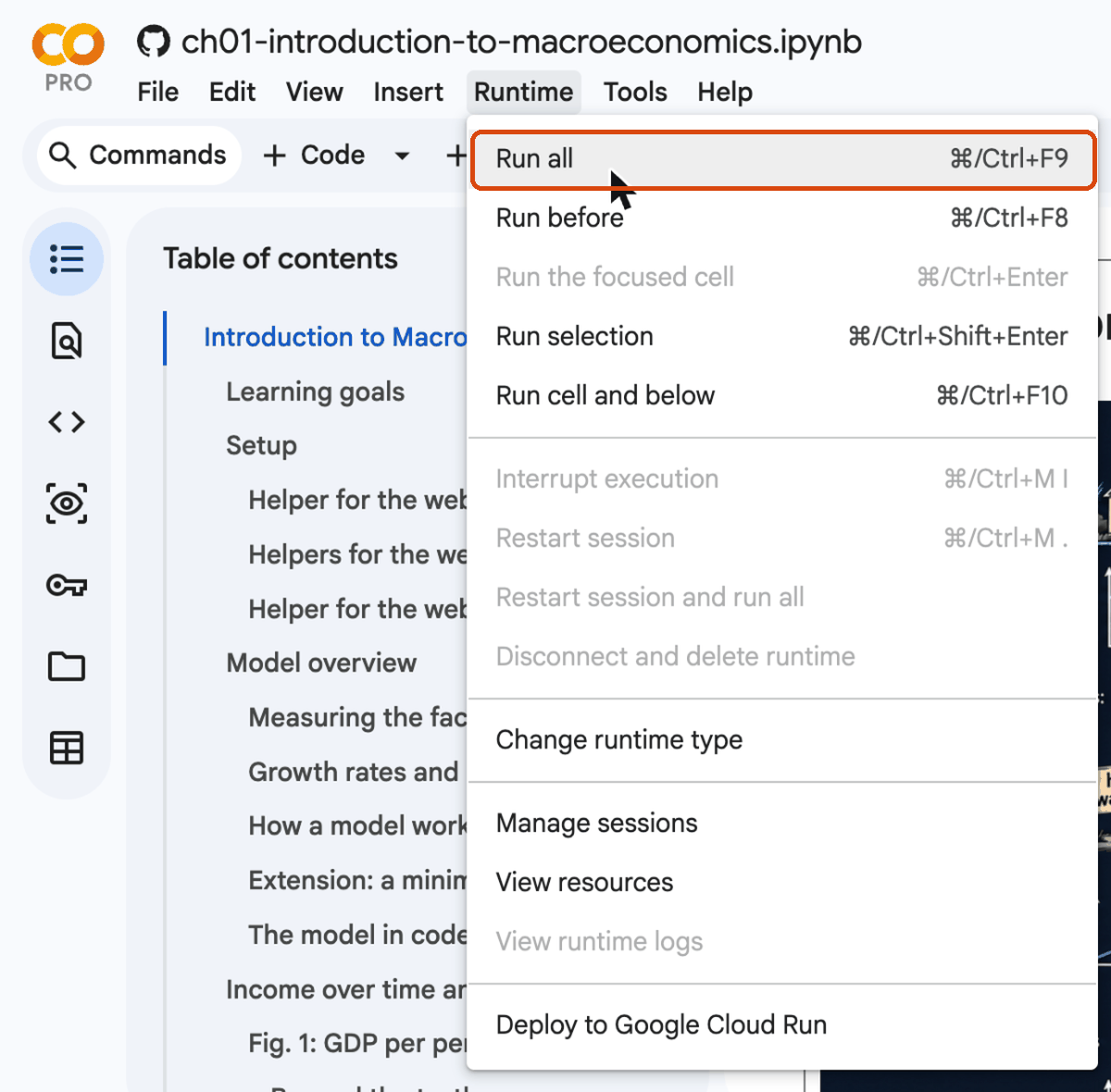
Screenshot A.3. Runtime → Run all.
Step 4: accept the warning. Because the notebook comes from GitHub and not from Google, Colab first shows the warning in Screenshot A.4. It is a sensible reminder to run code only from a source you trust. The book’s notebooks only read public data files and draw charts, so click Run anyway.
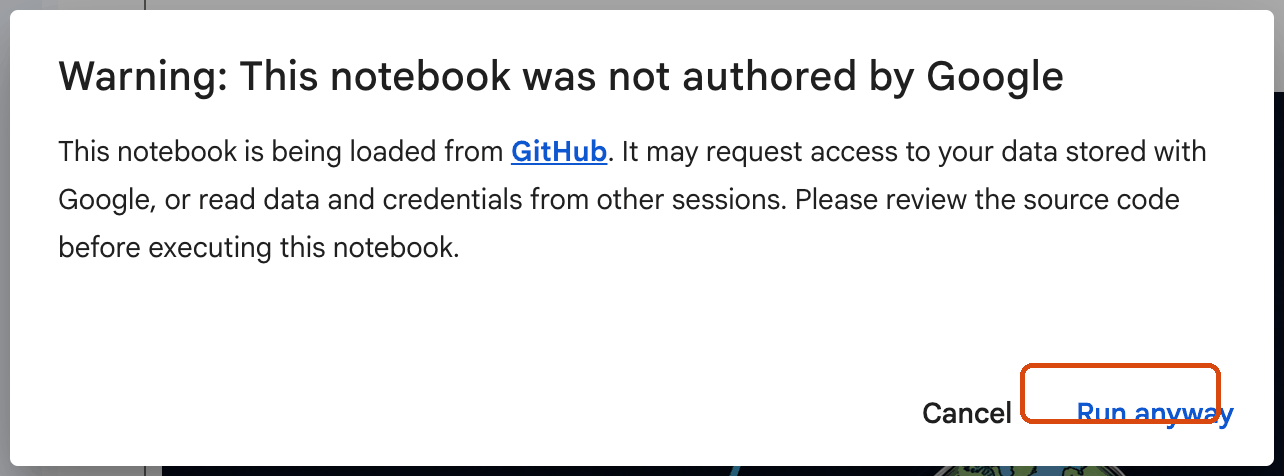
Screenshot A.4. The warning shown before a notebook from GitHub runs for the first time.
Step 5: read the code cells and move the sliders. After a cell has run, a number in square brackets appears at its left, with a green tick and the time it took (box 1 in Screenshot A.5). The number counts the runs, so it tells you the order in which cells were run. Some cells are folded into a title with a Show code link (box 2). These are helper cells and website versions: you must run them, but you do not need to read them.
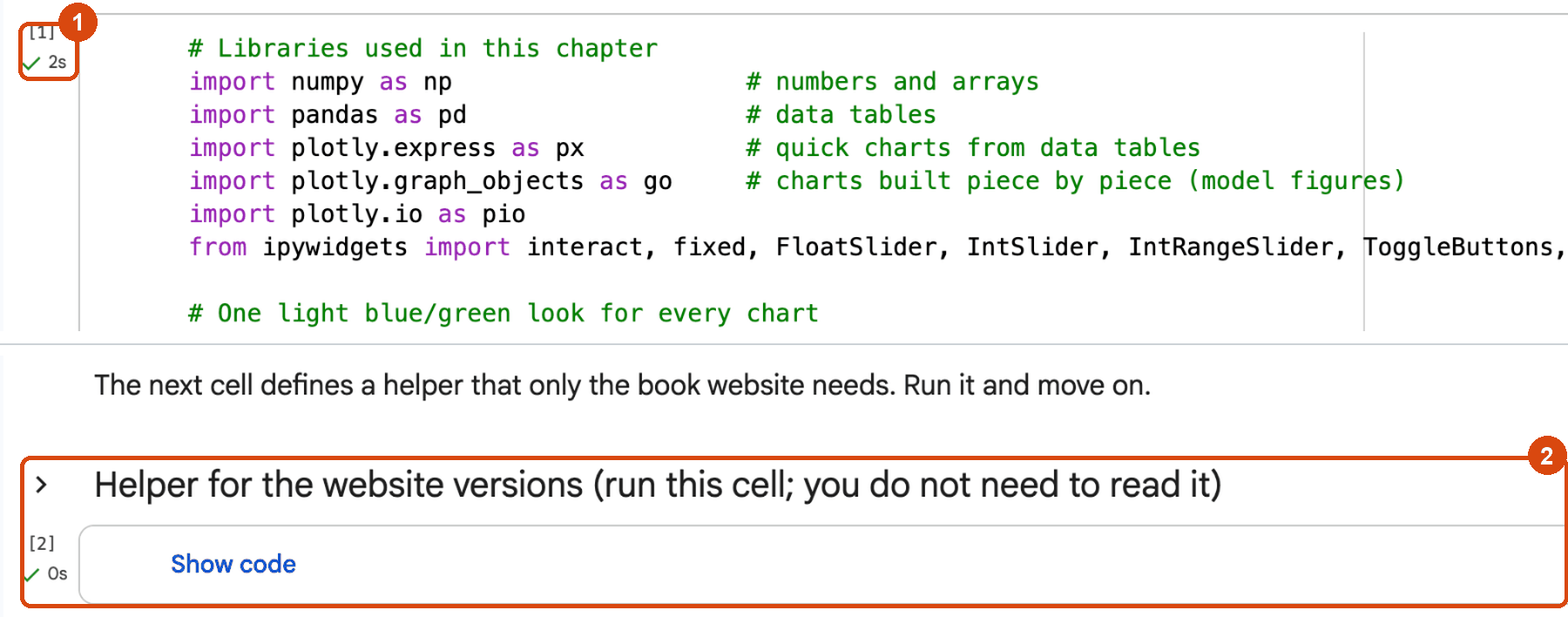
Screenshot A.5. The setup cell of Chapter 1 after running (1) and a folded helper cell (2).
Model figures come with live sliders in Colab (Screenshot A.6). Each time you move a slider, Python solves the model again and redraws the chart. In Fig. 8 of Chapter 1, the labor market, we moved labor demand at a zero wage, \(\bar{f}\), from 60 to 70 (box 1). Labor demand shifts to the right, and the title reports the new equilibrium (box 2): the wage rises from 10 to 13.33 and employment from 50 to 56.67. The dashed gray line is the textbook’s demand curve, kept for comparison.
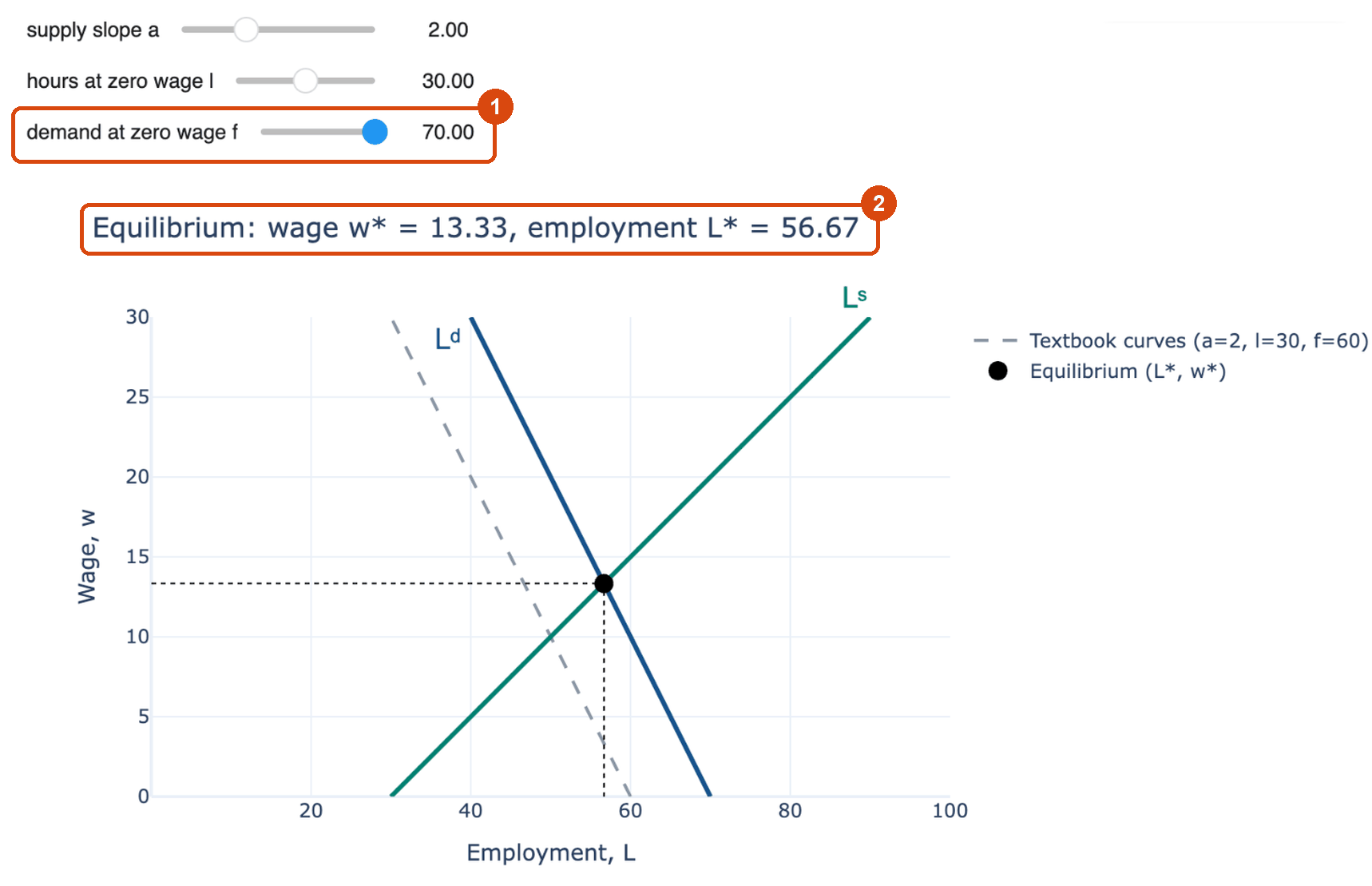
Screenshot A.6. Live sliders in Colab: labor demand at a zero wage moved from 60 to 70 (1) and the new equilibrium (2).
The book website cannot run Python. So every interactive figure also has a website version: the same chart, computed in advance for a few values of one parameter and joined by a Plotly slider under the chart (Screenshot A.7). On the website you can move that slider, hover over points and click legend entries. Only Colab lets you move every slider freely and change the code. On a small screen a wide chart may not fit: scroll it sideways with the bar under it to see the legend.
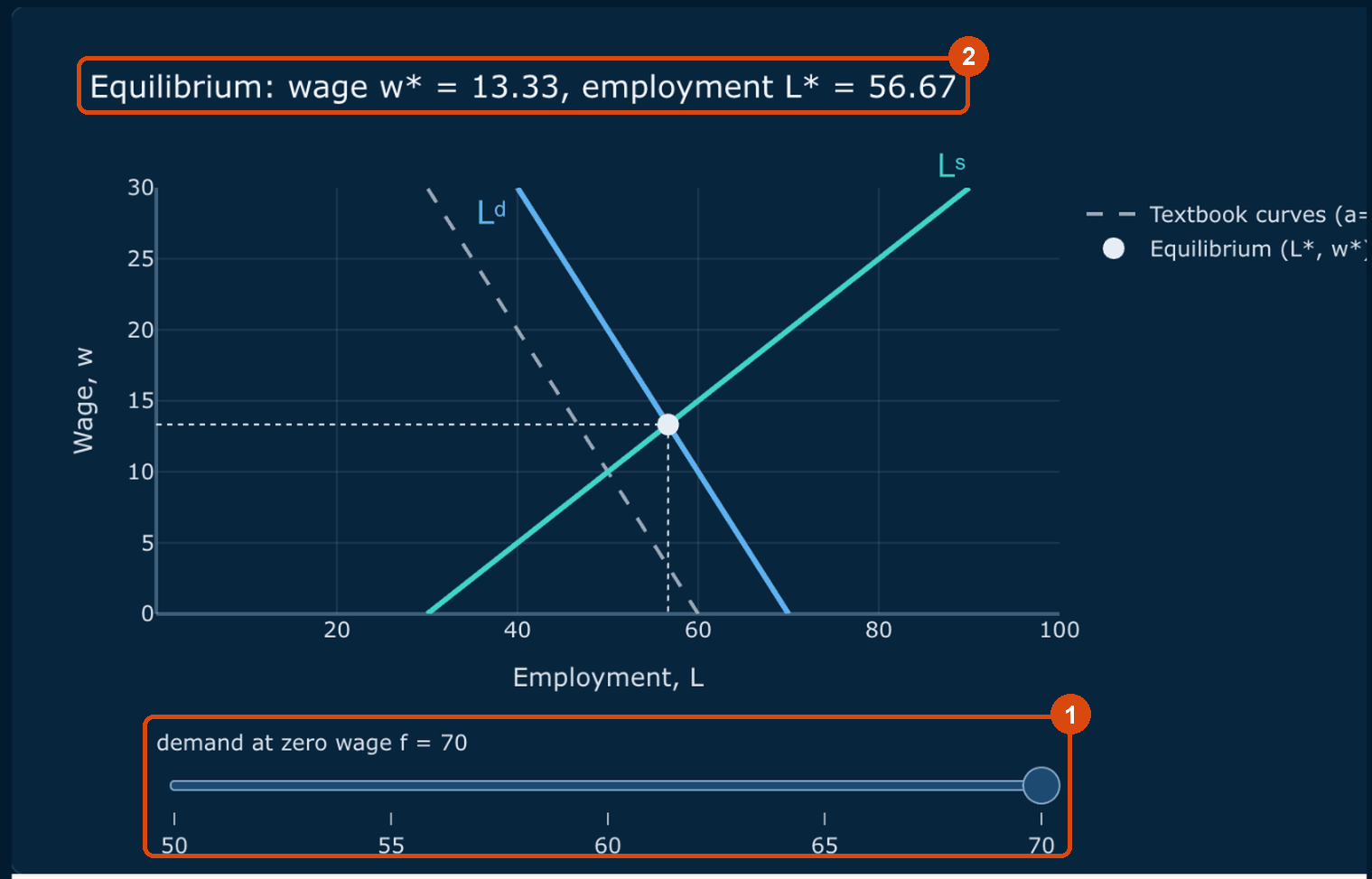
Screenshot A.7. The website version of the same figure: one precomputed slider (1) and the equilibrium in the title (2).
Step 6: save your own copy. A notebook opened from GitHub is read-only: Colab says “Save in GitHub to keep changes” next to its name, and your edits are lost when you close it. To keep your work, choose File → Save a copy in Drive (Screenshot A.8), or click Copy to Drive in the toolbar. Colab opens your copy in a new tab and keeps saving it, as you work, to a “Colab Notebooks” folder in your Google Drive.
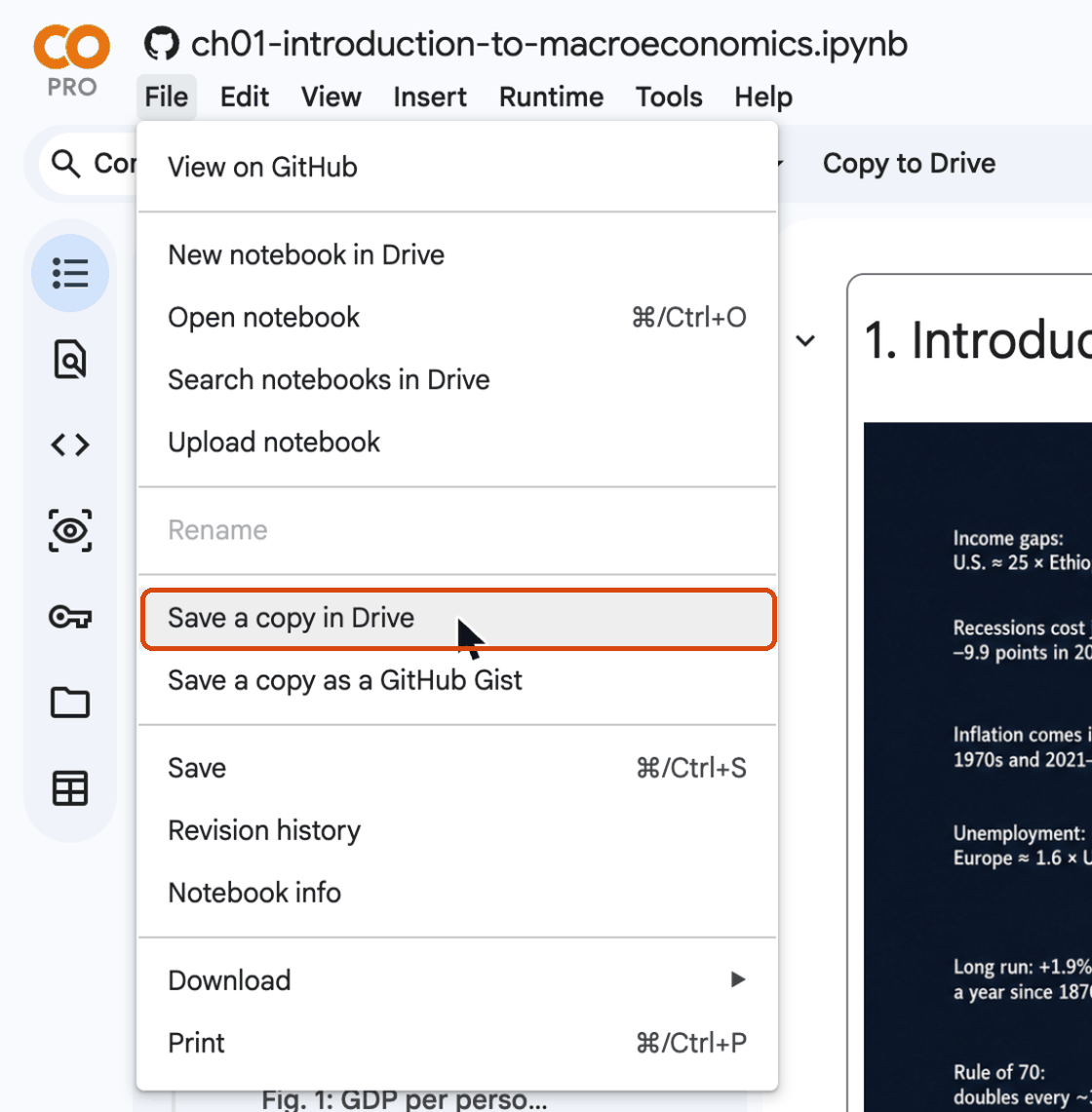
Screenshot A.8. File → Save a copy in Drive.
Step 7: close the runtime when you are done. Closing the browser tab does not stop the runtime right away, and the free tier allows only a few runtimes at the same time. So before you close the tab, choose Runtime → Disconnect and delete runtime (Screenshot A.9). If Colab ever refuses to start because of “too many sessions”, choose Runtime → Manage sessions and end the sessions you no longer need.
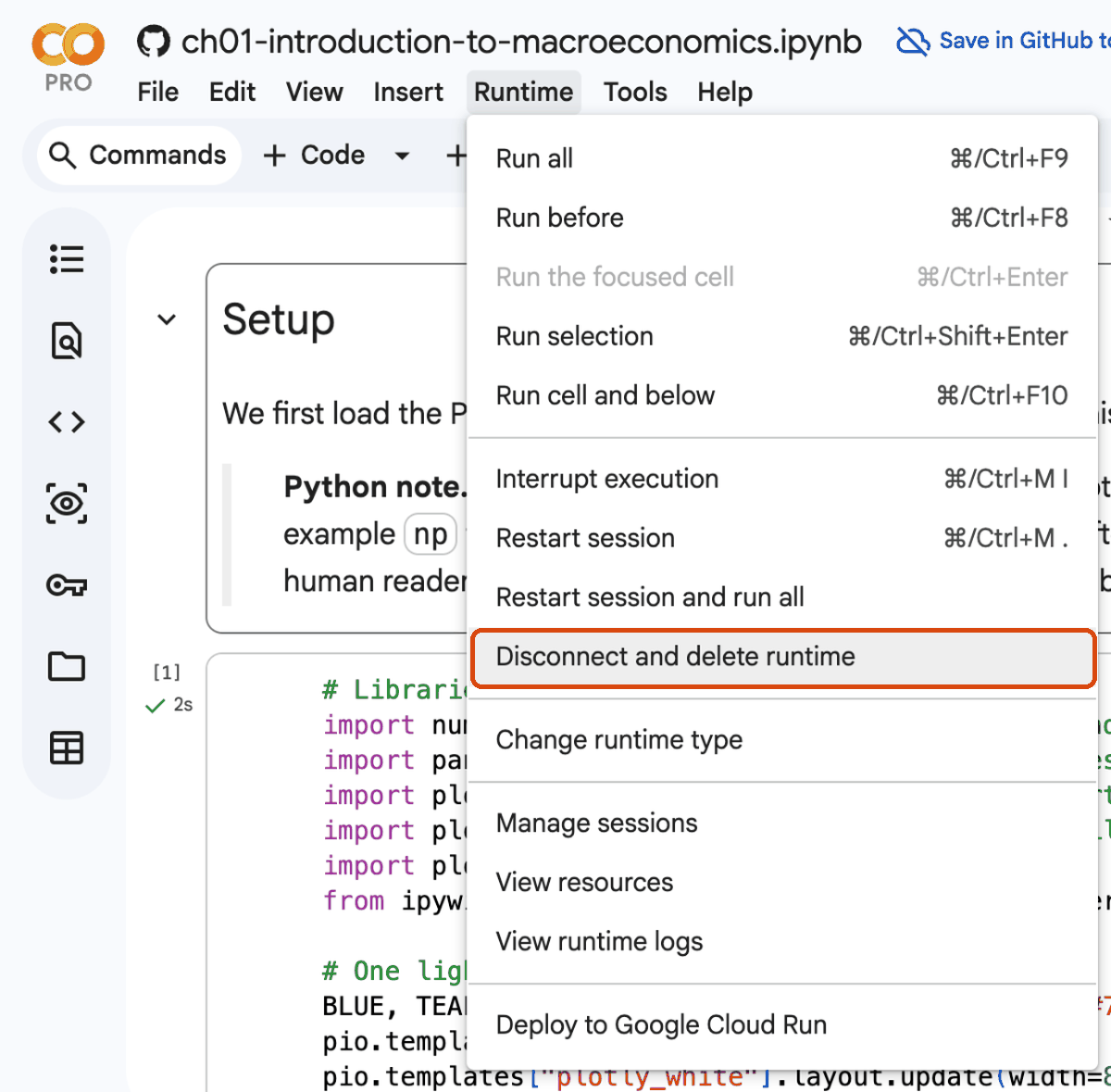
Screenshot A.9. Runtime → Disconnect and delete runtime.
You can also open a notebook without the badge: go to https://colab.research.google.com, choose File → Open notebook, pick the GitHub tab and paste the address of the notebook on GitHub.
Your turn. Open the Chapter 1 notebook in Colab with its badge, run it, and move the demand at zero wage f slider of Fig. 8. Then save a copy in your Drive and delete the runtime.
The badge is under the chapter title on the book website. In the Drive copy the notebook name starts with “Copy of”, and Colab says the notebook is saved instead of showing “Save in GitHub to keep changes”.
A notebook is a list of cells. Text cells are written in Markdown, a simple way to format text (**bold**, *italic*, # Heading), and they can hold equations such as \(y = \bar{A}k^{1/3}\). Code cells hold Python. To run a code cell, click inside it and press Shift+Enter, or click the round ▶ button at its left. Try it on the cell below.
# A code cell: Python works out the expression and shows the result of the last line
2 + 35Only the result of the last line of a cell is shown automatically. To show anything else, use print.
print("Hello, Colab!")
x = 10
x * 2          # the last line: its value is shown below the cell
Hello, Colab!20Screenshot A.10 shows the same idea in Colab: a new code cell with its result underneath. The number 1 in brackets means it was the first cell run in that session.

Screenshot A.10. A new code cell and its result.
A notebook remembers every variable you have created, in the order in which you ran the cells, not the order in which they appear on the page. The next two cells work only if you run the first one before the second. If you open a notebook and run a cell in the middle, you may see a NameError (Section A.4.8), because a cell above it has not run yet. The cure is almost always Runtime → Run all, or Runtime → Run before followed by the cell itself.
interest_rate = 0.05 # create a variable...interest_rate * 100 # ...and use it in a later cell5.0| Action | Windows / Linux | Mac |
|---|---|---|
| Run the cell and move to the next one | Shift+Enter | Shift+Enter |
| Run the cell and stay on it | Ctrl+Enter | ⌘+Enter |
| Run all cells | Ctrl+F9 | ⌘+F9 |
| Run all cells above | Ctrl+F8 | ⌘+F8 |
| Interrupt a running cell | Ctrl+M I | ⌘+M I |
| Show all shortcuts | Ctrl+M H | ⌘+M H |
The Runtime menu also has Restart session. It clears every variable, which helps when a notebook gets into a confusing state. After a restart, run the cells again from the top.
help(...) prints the documentation of any Python function. Inside a code cell you can also type the name of a function followed by ( and wait a moment: Colab shows the arguments it takes. Gemini is a third source of help, covered in Section A.5.
help(round)Help on built-in function round in module builtins:
round(number, ndigits=None)
Round a number to a given precision in decimal digits.
The return value is an integer if ndigits is omitted or None. Otherwise
the return value has the same type as the number. ndigits may be negative.
Your turn. Add a new code cell below (+ Code), compute how many hours there are in a year, and run it with Shift+Enter. Then change the cell to compute the hours in a leap year and run it again.
Multiply the number of days by the number of hours in a day. The star * multiplies.
# Your turn: try it herePython is a programming language that reads almost like English. This section covers the handful of ideas you need for the whole book, and every example comes from the book’s economics. Take your time here, even though an AI assistant can write code for you. You can only check code you can read (Section A.5.1).
Python works like a calculator. ** raises a number to a power, which is all you need for compound growth.
print(7 + 3, 7 - 3, 7 * 3, 7 / 3)     # add, subtract, multiply, divide
print(7 // 3, 7 % 3)                 # whole-number division and its remainder
print(2 ** 10)                       # a power: 2 to the 10th
10 4 21 2.3333333333333335
2 1
1024An economy that grows at 2 percent a year is multiplied by 1.02 every year. After 35 years it is \(1.02^{35}\) times as large:
1.02 ** 351.9998895526624565It has almost exactly doubled. This is the rule of 70 of Chapter 3 at work: at 2 percent a year, a variable doubles in about 70/2 = 35 years.
A variable is a name for a value. The = sign means “store the value on the right under the name on the left”. Names may contain letters, digits and underscores, but not spaces, and they are case-sensitive (GDP and gdp are different names). In this book the names follow the notation of the textbook, such as s, d, A, k_star and y_star.
y_1990 = 47713      # U.S. GDP per person in 1990, 2022 dollars (Maddison data, Section A.6)
y_2022 = 75459      # the same in 2022
growth_factor = y_2022 / y_1990
growth_factor1.5815186636765661From the growth factor we get the average annual growth rate: the rate \(g\) that turns \(y_{1990}\) into \(y_{2022}\) in 32 years, \(y_{2022} = y_{1990}(1+g)^{32}\), so \(g = (y_{2022}/y_{1990})^{1/32} - 1\).
g = growth_factor ** (1 / 32) - 1
g0.014427636896671148Every value has a type. The four you will meet most are whole numbers (int), decimal numbers (float), text (str, for string, written in quotes) and truth values (bool: True or False).
country = "United States"           # a string
years = 2022 - 1990                 # an int
g = growth_factor ** (1 / years) - 1    # a float
is_rich = y_2022 > 50000            # a bool, the result of a comparison
print(type(country), type(years), type(g), type(is_rich))
<class 'str'> <class 'int'> <class 'float'> <class 'bool'>Python note. An f-string is a string with an
fbefore the opening quote. Python replaces each{...}inside it with the value of the expression. After a colon you can set the format:{g:.2%}showsgas a percentage with 2 decimals,{y:,.0f}showsywith a thousands separator and no decimals.
print(f"{country}: GDP per person grew from {y_1990:,.0f} to {y_2022:,.0f} dollars,")
print(f"or {g:.2%} a year on average over {years} years.")
United States: GDP per person grew from 47,713 to 75,459 dollars,
or 1.44% a year on average over 32 years.A list holds several values in order, inside square brackets. Python counts positions from 0, so countries[0] is the first element and countries[-1] the last one.
countries = ["United States", "Japan", "China"]
print(countries[0], "|", countries[-1], "|", len(countries), "countries")
countries.append("India")        # add an element at the end
countries
United States | China | 3 countries['United States', 'Japan', 'China', 'India']A for loop repeats the indented lines below it, once for each value. range(1, 6) gives the whole numbers 1, 2, 3, 4 and 5. Note the colon at the end of the for line and the four spaces of indentation: they tell Python which lines belong to the loop.
# Compound growth, year by year: income grows by 2 percent each year
y = 100.0
for year in range(1, 6):
    y = y * 1.02
    print(f"year {year}: {y:.2f}")
year 1: 102.00
year 2: 104.04
year 3: 106.12
year 4: 108.24
year 5: 110.41Loops are how the book simulates models over time. Here is the capital accumulation equation of the Solow model (Chapter 5), \(k_{t+1} = k_t + s\,k_t^{1/3} - d\,k_t\), run for 50 years. Each year, capital per person grows by investment and shrinks by depreciation.
s, d = 0.2, 0.1        # investment rate and depreciation rate
k = 1.0                # capital per person in year 0
path = [k]             # a list that will hold the whole path
for t in range(50):
    k = k + s * k ** (1 / 3) - d * k
    path.append(k)
k_star = (s / d) ** 1.5                 # the steady state of this model, (s/d)^(3/2)
print(f"k after 10 years: {path[10]:.3f}, after 50 years: {path[50]:.3f}")
print(f"steady state k* = {k_star:.3f}")
k after 10 years: 1.828, after 50 years: 2.761
steady state k* = 2.828Capital rises quickly at first and then slows down as it approaches the steady state: the principle of transition dynamics of Chapter 5.
ifif, elif (else if) and else run different lines depending on a condition. The comparisons are >, <, >=, <=, == (equal; note the double sign) and != (not equal).
g_percent = 1.4                  # an average growth rate, in percent a year
if g_percent >= 3:
    label = "fast"
elif g_percent >= 1:
    label = "moderate"
else:
    label = "slow or negative"
print(f"Growth of {g_percent}% a year is {label}.")
Growth of 1.4% a year is moderate.A dictionary stores values under names (keys), inside curly braces. The book uses dictionaries for sets of parameters and for colors.
params = {"s": 0.2, "d": 0.1, "A": 1.0}
print(params["s"])               # look up a value by its key
params["s"] = 0.3                # change it
for key in params:
    print(key, "=", params[key])
0.2
s = 0.3
d = 0.1
A = 1.0A function packs a few lines of code under a name, so you can reuse them. def starts the definition, the names in parentheses are its arguments, and return sends back the result. An argument with a default value (A=1.0) can be left out when you call the function. The text in triple quotes, the docstring, says what the function does. In the chapters each model equation becomes one short function like this one, the production function of Chapter 4.
def output(k, A=1.0):
    """Output per person in the production model of Chapter 4: y = A k^(1/3)."""
    return A * k ** (1 / 3)

print(output(8))           # k = 8 and the default A = 1
print(output(8, A=2.0))    # the same capital with twice the productivity
2.0
4.0A second function turns the rule of 70 into code and uses a loop to try several growth rates.
def years_to_double(g_percent):
    """Rule of 70 (Chapter 3): something growing at g percent a year doubles in about 70/g years."""
    return 70 / g_percent

for g_percent in [1, 2, 3.5, 7]:
    print(f"growth of {g_percent}% a year: doubles in about {years_to_double(g_percent):.0f} years")
growth of 1% a year: doubles in about 70 years
growth of 2% a year: doubles in about 35 years
growth of 3.5% a year: doubles in about 20 years
growth of 7% a year: doubles in about 10 yearsA library (or package) is a collection of functions that someone else has written. import loads one. The built-in math library, for example, has the natural logarithm, which gives the exact doubling time \(\ln 2 / \ln(1+g)\) to compare with the rule of 70. The rule is very close at low growth rates and a little off at high ones.
import math
for g_percent in [2, 7]:
    exact = math.log(2) / math.log(1 + g_percent / 100)
    rule = years_to_double(g_percent)
    print(f"At {g_percent}% a year: exactly {exact:.1f} years; rule of 70: {rule:.1f} years")
At 2% a year: exactly 35.0 years; rule of 70: 35.0 years
At 7% a year: exactly 10.2 years; rule of 70: 10.0 yearsEveryone writes code with mistakes. When Python cannot run a line, it stops and prints an error message (a traceback). Read it from the bottom: the last line names the kind of error and what went wrong, and an arrow ----> points to the line that failed. Screenshot A.11 shows a typo in a variable name, which gives a NameError. Under the message, Colab offers an Explain error button that asks Gemini for help (Section A.5.4). Read the message yourself first: most errors take a few seconds to fix once you know where to look.
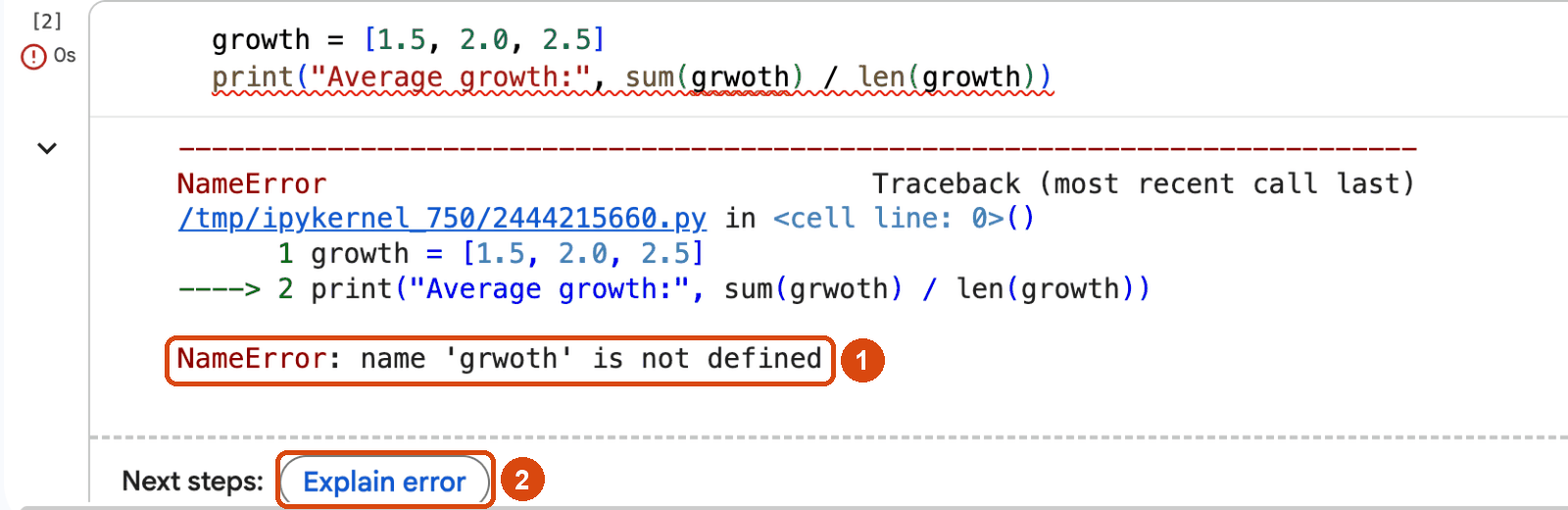
Screenshot A.11. A NameError (1): the variable grwoth was never created (the name is growth). Below it, the Explain error button (2).
You can also catch an error yourself with try ... except. Python tries the indented lines under try; if they fail with the named error, it runs the lines under except instead of stopping. The setup cell of every chapter uses this to run one line that only works in Colab.
try:
    "GDP in " + 2025          # text plus a number: Python refuses to guess what you mean
except TypeError as error:
    print("TypeError:", error)
print("GDP in " + str(2025))    # the fix: turn the number into text first
TypeError: can only concatenate str (not "int") to str
GDP in 2025Your turn. Write a function growth_rate(y_start, y_end, years) that returns the average annual growth rate in percent. Check it with the U.S. numbers of Section A.4.2: you should get about 1.4. Write it yourself, without Gemini: you will need this function in your head when you check AI code in the next section.
Start from \(g = (y_{end}/y_{start})^{1/years} - 1\), multiply by 100, and return the result. Indent the body of the function by four spaces.
# Your turn: try it hereColab has Gemini, Google’s AI assistant, built in. You talk to it in plain language, in English or in your own language, and it answers with explanations and with code. Gemini in Colab is more than a chat window, because it can see your notebook: its text, its code and the results of the cells you have run. So you can ask about “this cell” or “the table above”, and it can write a new cell straight into the notebook and run it.
This section shows five ways to use it:
| Tool | What you do | Section |
|---|---|---|
| Ask Gemini | ask a question about Python, economics or a cell of the notebook | A.5.2 |
| Generate code | describe the code you want; Gemini writes a cell for you to accept or reject | A.5.3 |
| Explain error | click the button under an error; Gemini explains it and suggests a fix | A.5.4 |
| The agent | describe a whole analysis; Gemini plans it, writes and runs the cells, and reports | A.5.5 |
| Learn Mode | Gemini becomes a tutor that guides you step by step instead of giving the answer | A.5.6 |
Then come three skills that matter more than any button: writing good prompts (A.5.7), checking what the AI produces (A.5.8), and using AI responsibly (A.5.9).
An AI assistant writes code that runs. That is not the same as code that answers your question correctly. A wrong formula, a wrong column or a wrong year range gives no error message: you get a number that looks fine, and you only notice the mistake if you can read the code and know what the number should be.
Here is a mistake that AI assistants (and people) make all the time. Ask for “the average growth rate” of a series, and you often get the average of the yearly growth rates. Take an income that rises by 50 percent in one year and falls by 50 percent in the next:
incomes = [100, 150, 75]     # income rises 50 percent, then falls 50 percent
yearly = []
for t in range(1, len(incomes)):
    yearly.append((incomes[t] / incomes[t - 1] - 1) * 100)
print("yearly growth rates (percent):", yearly)
print("average of the yearly rates:", sum(yearly) / len(yearly))

g_true = ((incomes[-1] / incomes[0]) ** (1 / 2) - 1) * 100     # the formula of Section A.4.2
print(f"true average annual growth rate: {g_true:.1f} percent")
yearly growth rates (percent): [50.0, -50.0]
average of the yearly rates: 0.0
true average annual growth rate: -13.4 percentThe average of the yearly rates is 0, which suggests income is back where it started. In fact income fell from 100 to 75, a loss of 25 percent, or about −13.4 percent a year. The right formula is the compound (geometric) rate of Section A.4.2. With real data the gap can be large: in Section A.7 the average of the yearly rates turns a country that got poorer into one that seems to grow fast.
Gemini makes this kind of mistake less often if you ask clearly (Section A.5.7), but it can still make it, and it explains a wrong answer just as confidently as a right one. This is why the book teaches Python first. Let the AI type for you, but keep the judgment for yourself.
Click the Gemini button, the blue star at the bottom centre of the Colab window (box 1 in Screenshot A.12). The Gemini panel opens on the right. Its parts are:
Your first name appears in the greeting. We blurred it in the screenshots, and replaced the profile photo with a grey circle.
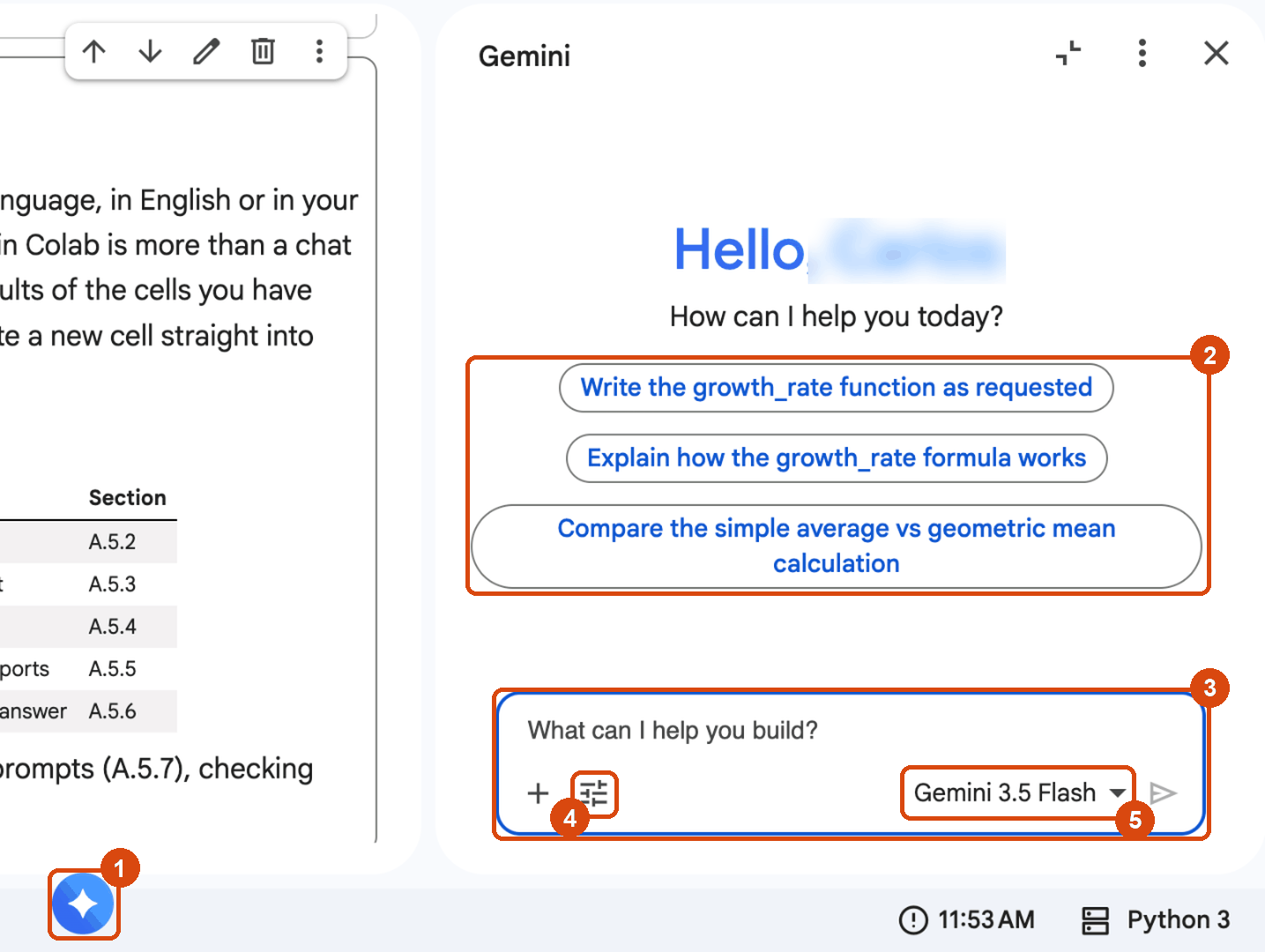
Screenshot A.12. The Gemini panel.
The most useful question for a learner is “Explain this code”. Gemini reads the whole notebook, so you can point to a cell by its section or by what it does. In Screenshot A.13 we asked about the Solow loop of Section A.4.4 (box 1):
Explain the cell in Section A.4.4 that simulates the Solow model, line by line, for a beginner. What does k_star mean?
Your prompt appears at the top of the panel (box 2). Gemini’s answer (box 3) goes through the code line by line and links it to the economics: s is the investment rate, the loop adds investment and subtracts depreciation every year, and k_star is the steady state that capital approaches. Under the prompt box, Colab reminds you that “Gemini can make mistakes so double-check it and use code with caution” (box 4). Take that literally. Even in this good answer, one formula is displayed twice by mistake.
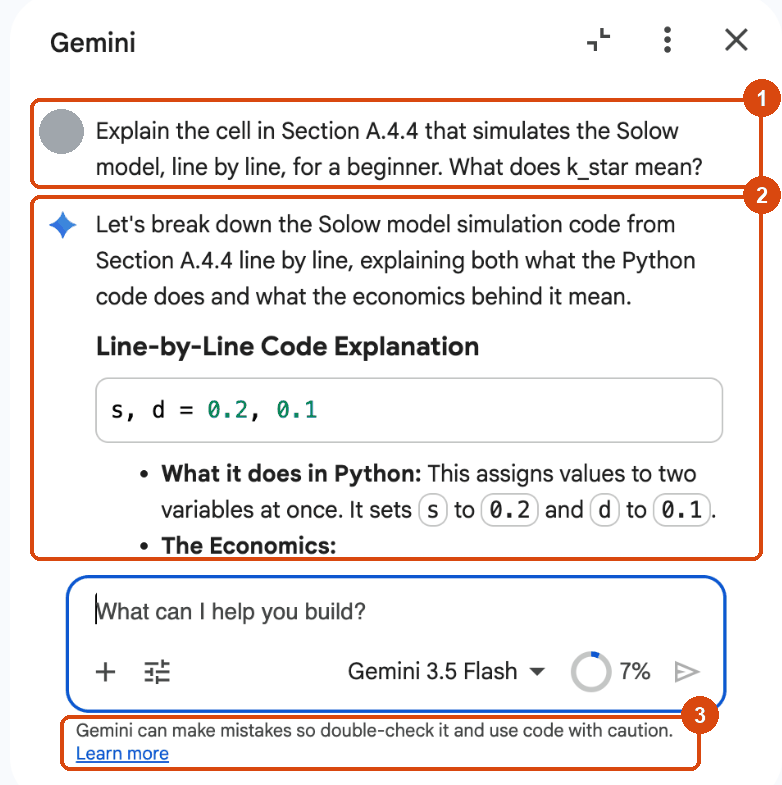
Screenshot A.13. Asking Gemini to explain a cell: the cell (1), the prompt (2), the answer (3) and the reminder (4).
Use the panel for questions about Python (What does .pivot do?), about an output (Why are there NaN values in this table?), and about the economics (What is the rule of 70?). Each answer ends with a few suggested follow-up questions, and the thumbs up and thumbs down buttons send feedback to Google.
Every empty code cell in Colab shows the line “Start coding or generate with AI.” Click generate, and the Gemini panel opens with that empty cell attached (a small Empty cell label above the prompt box). You can also simply type your request in the panel. Describe what you want:
Using a for loop, print how many years it takes something to double at growth rates of 1 to 7 percent a year, exactly (with math.log) and with the rule of 70.
Gemini writes the code into the cell, marked with a Gemini label and shown as a diff: new lines are green and start with +, and lines it would remove are red (Screenshot A.14). Nothing has run yet. You have three buttons:
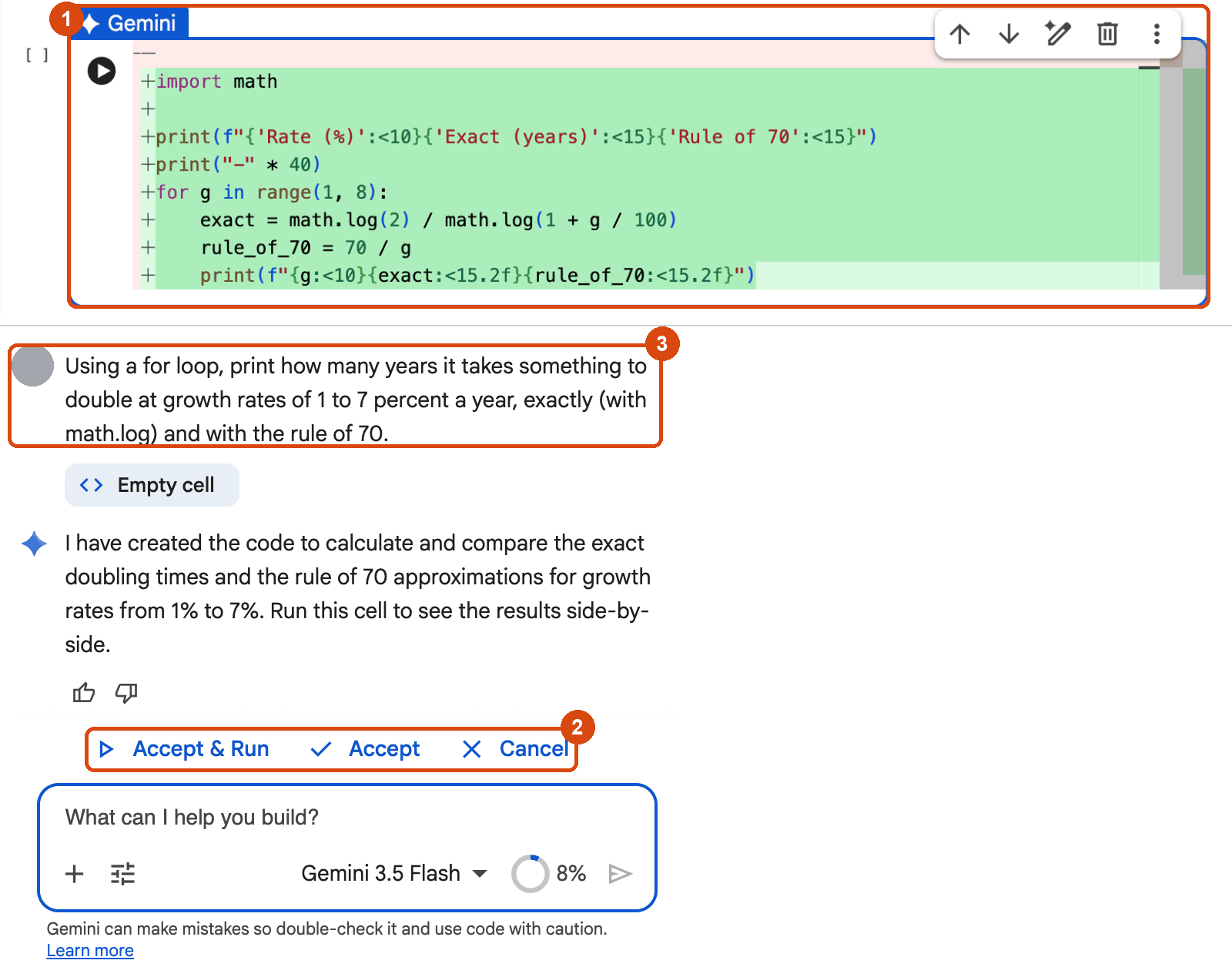
Screenshot A.14. A cell written by Gemini (1), waiting for Accept & Run, Accept or Cancel (2); the request in the panel (3).
Read the cell before you accept it. Does it use the formula you expected? Here it does: the exact doubling time is math.log(2) / math.log(1 + g / 100), and range(1, 8) gives the rates 1 to 7 (not 1 to 8, because range stops before its end value). Does it reuse your variables and functions, or invent new ones? Here it wrote 70 / g again instead of calling years_to_double from Section A.4.7. That is fine, but in a longer notebook duplicated code is a common source of inconsistencies.
Colab also has a quieter AI feature: inline completions. As you type in a code cell, it suggests the rest of the line in grey; press Tab to accept it. You can switch it off under Tools → Settings → AI Assistance, which is a good idea while you are learning to write code yourself.
When a cell fails, Colab shows Next steps: Explain error under the error message (Screenshot A.11). Click it, and Gemini receives the error and the code that caused it. In Screenshot A.15 we ran the line print("Average growth:", sum(growth) / len(growht)) in a fresh session. It uses a list growth that was never created, and misspells its name as well. Python stops at the first problem it meets (box 2).
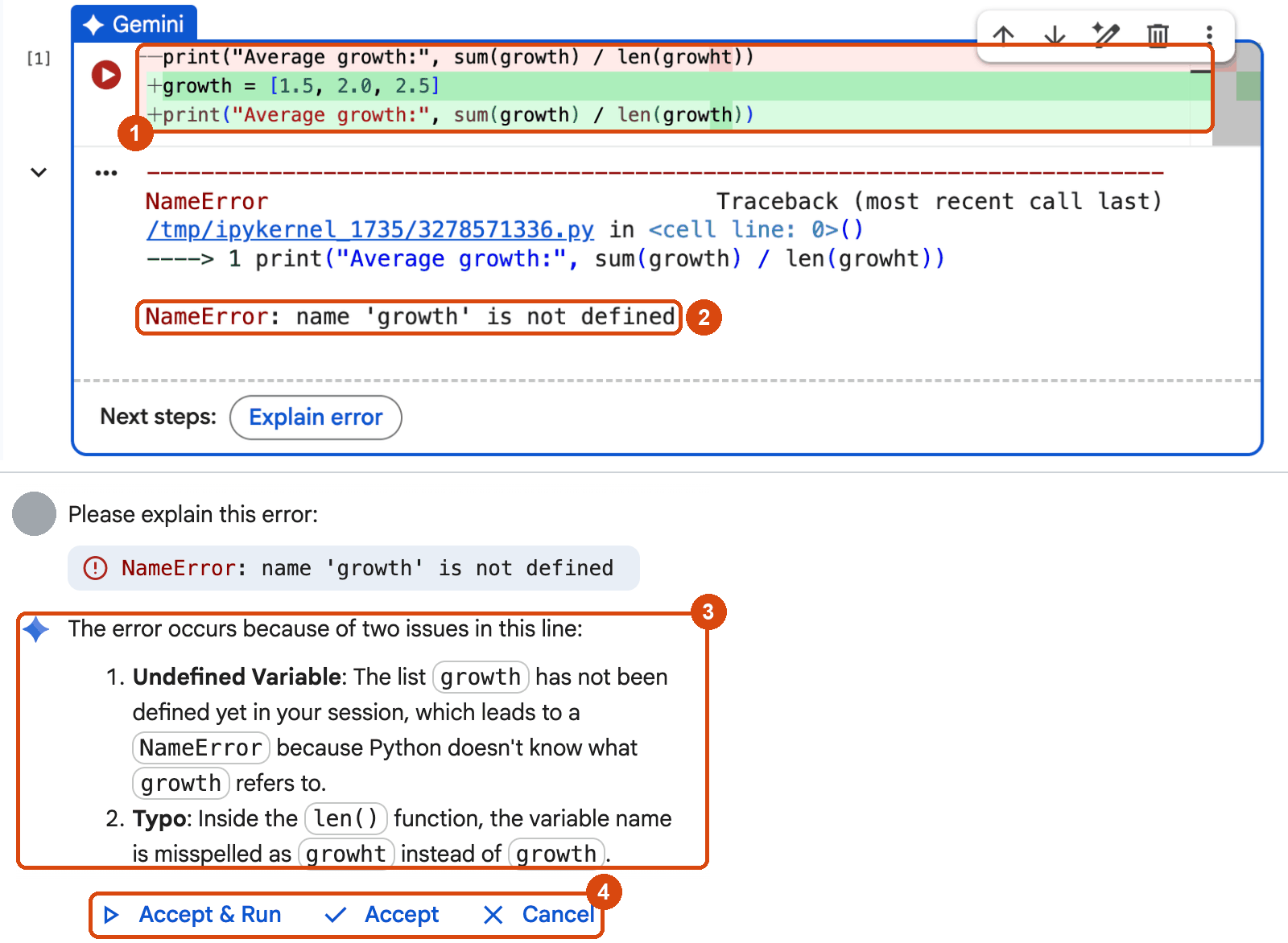
Screenshot A.15. Explain error: the proposed fix in the cell (1), the error (2), Gemini’s explanation (3) and the buttons to accept or cancel the fix (4).
Gemini found both problems (box 3): the list does not exist, and growht is a typo. Its fix appears in the cell itself, again as a diff (box 1): the red line is the old one, the green lines the new ones. Look closely, though. The fix corrects the typo, and it makes the error disappear by adding the line growth = [1.5, 2.0, 2.5]: made-up example data. Click Accept & Run and the cell runs without an error, but its result is about invented numbers, not your data. AI fixes often make an error disappear without solving your problem, so treat every fix as a suggestion:
Gemini in Colab can also work as an agent. Google first launched this as the Data Science Agent. Give it a goal that takes several steps, and it plans the steps, writes the cells, runs them (after you accept), looks at the results and writes a short report. We asked:
Load https://raw.githubusercontent.com/quarcs-lab/macro102-site/main/data/appA/maddison_panel.csv with pandas. Plot GDP per person of every country since 1950 on a ratio scale, and tell me which country grew fastest since 1950.
Gemini first said what it would do (box 1 in Screenshot A.16). Then it wrote two cells: the first (box 2) loads the file, pivots it and computes each country’s compound growth rate from 1950 to 2022; the second draws the chart. After we clicked Accept & Run, it ran both cells, read the output and summarized its findings (box 3): China grew fastest, at 4.52 percent a year. That is the same number we compute by hand in Section A.6.3.
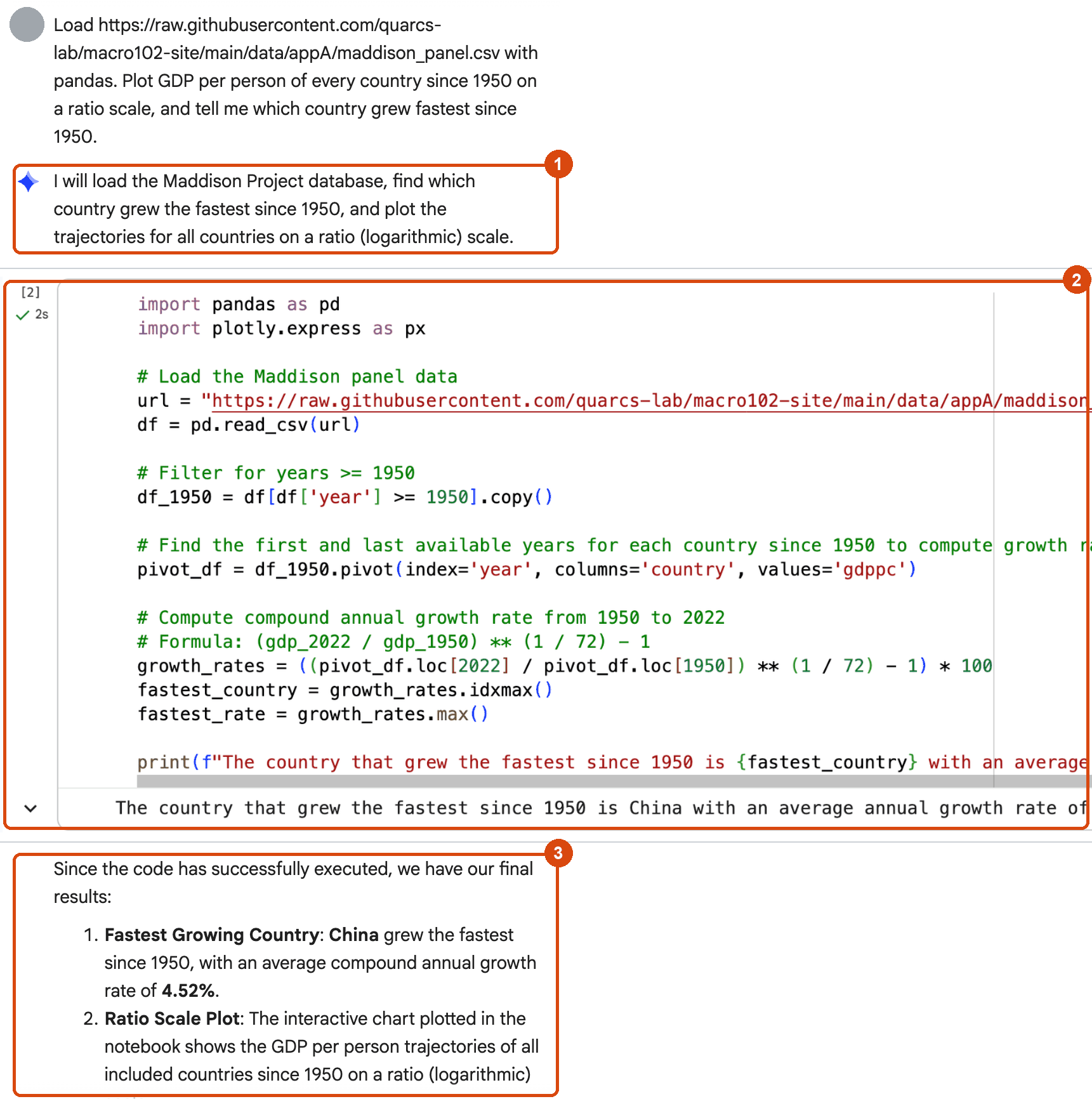
Screenshot A.16. The agent at work: its plan (1), the first of the two cells it wrote and ran (2), and its report (3).
The agent saves a lot of typing, and its report is a good first draft. But it is still your analysis. Check the plan (did it answer your question?), the code (which formula, which years, which countries?) and the report (does every number in the text match the output?). Also check where it put its cells: here it added them near the end of the notebook, not next to the section we were reading. Section A.7 checks a full project this way.
If your goal is to learn Python rather than to get an answer, switch Gemini to Learn Mode: click the mode icon next to the + in the prompt box and choose Learn Mode (box 1 in Screenshot A.17). Switching mode starts a new chat. In Learn Mode Gemini does not hand you finished code. It explains the idea, gives you the next small step and asks you to try it.
We asked: How do I compute the average annual growth rate of GDP per person between two years in Python? In Default mode, Gemini would answer with the code. In Learn Mode, it first explains why we look for one constant compound rate rather than the simple average of yearly changes. Then it asks you three questions (box 2): how would you write the formula that connects \(y_{start}\), \(y_{end}\), \(g\) and \(N\); how would you rearrange it to isolate \(g\); and which Python operators would you use? You answer, and it continues from there. (Gemini’s panel sometimes shows math as raw code, with $ signs and the formula repeated. Read past it, or ask Gemini to write the formula in plain text.)
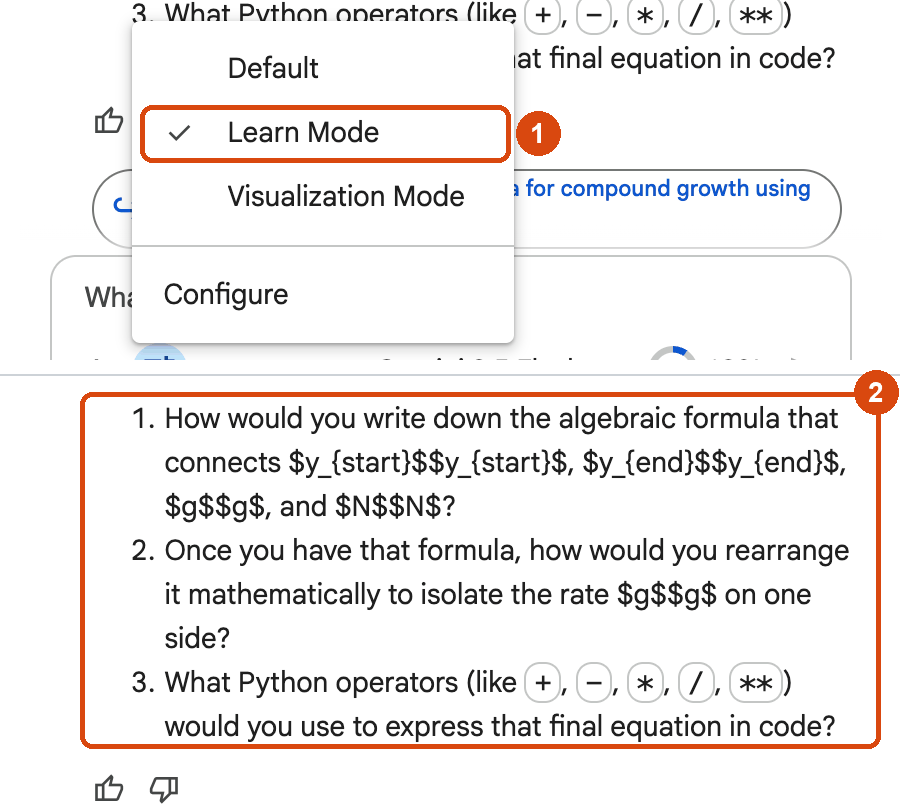
Screenshot A.17. Learn Mode selected in the mode menu (1), and the questions Gemini asks instead of giving the code (2).
Learn Mode is the best way to use AI on the Your turn tasks of this book. You still get stuck less often, and you still learn to write the code yourself.
The same menu has two more entries. Visualization Mode makes Gemini prefer charts in its answers. Configure lets you write custom instructions that Gemini follows in every chat in this notebook, such as “I am a beginner; explain every new Python idea; use pandas and Plotly Express”. The instructions are saved in the notebook, so they also apply when you share it.
A prompt is your request to the AI. Clear prompts get better code. Four habits help most:
gdp_pc, year).| Vague prompt | Better prompt |
|---|---|
| Plot GDP. | Plot gdppc from panel for China and the United States since 1950 as a line chart with Plotly Express, on a ratio scale, with labeled axes. |
| Which countries grew fastest? | Using pwt, compute the compound average annual growth rate of gdp_pc from 1990 to 2023 for each country, and show the ten fastest in a table. |
| Fix this. | This cell gives a KeyError for ‘gdp’. The column names are in df.columns. Fix the column name only, and do not change the rest. |
| Explain the Solow model. | Explain the cell above line by line for a beginner, and say how it relates to the equation k(t+1) = k(t) + s k(t)^(1/3) − d k(t). |
If the answer is not what you wanted, do not start over. Reply in the same chat (“use 1990 as the start year”, “keep Venezuela out”, “make the bars horizontal”). Gemini remembers the conversation.
Treat AI code like code from a classmate: probably helpful, possibly wrong. Before you use a result, run through this checklist.
# written with Gemini, checked by me) or a sentence in a text cell.Your turn. Try each AI tool once. (If your account has no Gemini, read the tasks and skip to Section A.6.)
print(growth_factor ** (1 / yeras)), run it, and click Explain error. Is the suggested fix right? Does it keep your variables?growth_rate(y_start, y_end, years) of the Your turn of Section A.4.8. Compare its code with yours, and check it on the U.S. numbers (about 1.4).NameError: yeras is a typo for years, which already exists (Section A.4.3). The right fix changes only the spelling.((y_end / y_start) ** (1 / years) - 1) * 100. If Gemini’s version differs, ask it why.# Your turn: try it hereFour libraries do almost all the work in this book. Every chapter uses all four. They are also the libraries Gemini reaches for when you ask it to analyze data in Colab, so knowing them lets you read its code.
| Library | Nickname | What it does | Where you will see it most |
|---|---|---|---|
| NumPy | np |
fast math on whole arrays of numbers | model curves (np.linspace), logs, fitted trend lines (np.polyfit, in Chapters 2, 9, 12, 19 and 21) |
| pandas | pd |
data tables: read, filter, reshape, combine | every data figure; groupby in 19 chapters, merge in 12, pivot in 10 |
| Plotly | px, go |
interactive charts: hover, zoom, legends, sliders, animations | Plotly Express (px) for data figures; graph_objects (go) for model figures; make_subplots for two-panel figures in 9 chapters |
| ipywidgets | — | sliders, buttons and menus that rerun a function | the live model figures and the country pickers of the data figures |
Every chapter starts with a setup cell like the one below. It loads the libraries, sets one light blue/green look for all charts, switches on Colab’s support for interactive charts, and stores the web address of the chapter’s data files in DATA_URL. You only need to run it once per session, but it must run before anything else, which Run all takes care of.
Python note.
import numpy as nploads NumPy and gives it the nicknamenp, so we can writenp.loginstead ofnumpy.log.from ipywidgets import interactloads one function from a library, so we can write justinteract. Names in capital letters, such asBLUEorDATA_URL, are a convention for constants: values we set once and never change.
# Libraries used in this appendix
import numpy as np                              # numbers and arrays
import pandas as pd                             # data tables
import plotly.express as px                     # quick charts from data tables
import plotly.graph_objects as go               # charts built piece by piece (model figures)
import plotly.io as pio
from plotly.subplots import make_subplots       # several panels in one figure
from ipywidgets import interact, FloatSlider, Dropdown, SelectMultiple

# One light blue/green look for every chart
BLUE, TEAL, GREEN, GRAY = "#16528c", "#008070", "#7fb23a", "#8a96a3"
pio.templates.default = "plotly_white"
pio.templates["plotly_white"].layout.update(width=860, height=480)   # same size in Colab and on the website
px.defaults.color_discrete_sequence = [BLUE, TEAL, GREEN, "#c4651a", "#8e5ea2", "#5aa0d8", "#0b4f47"]
WIDE = {"description_width": "initial"}         # show the full widget labels

# Colab only: let Plotly charts appear inside the interactive widgets
try:
    import google.colab
    google.colab.output.enable_custom_widget_manager()
except ImportError:
    pass                                        # not running in Colab: nothing to do

# The data files of this appendix live in the book's GitHub repository
DATA_URL = "https://raw.githubusercontent.com/quarcs-lab/macro102-site/main/data/appA/"
Most chapters also have one or two folded helper cells right after the setup cell. They build the website versions of the interactive figures. Run them and move on.
# @title Helper for the website versions (run this cell; you do not need to read it)
def slider_figure(make_figure, name, values, start, label=None):
    """Precompute make_figure(name=value) for every value and join the results with one slider.

    The website cannot run Python, so each interactive figure also gets this precomputed version.
    """
    figures = [make_figure(**{name: v}) for v in values]
    first = values.index(start)
    fig = go.Figure(layout=figures[first].layout)
    owner = []                                  # which precomputed figure each trace comes from
    for i, f in enumerate(figures):
        for trace in f.data:
            trace.visible = (i == first)
            fig.add_trace(trace)
            owner.append(i)
    steps = []
    for i, f in enumerate(figures):
        layout = {"title": f.layout.title.to_plotly_json(),
                  "annotations": [a.to_plotly_json() for a in f.layout.annotations],
                  "shapes": [s.to_plotly_json() for s in f.layout.shapes]}
        visible = [o == i for o in owner]
        steps.append(dict(method="update", label=str(values[i]), args=[{"visible": visible}, layout]))
    fig.update_layout(sliders=[dict(active=first, steps=steps, pad=dict(t=60),
                                    currentvalue=dict(prefix=(label or name) + " = "))])
return figA NumPy array is like a list of numbers, but you can do math on all its elements at once, without a loop. np.linspace(start, stop, n) makes n evenly spaced numbers. The chapters use it to make the x-values of every model curve.
k = np.linspace(0, 10, 6)        # 6 evenly spaced values from 0 to 10
print(k)
print(k ** (1 / 3))              # the cube root of every element at once
print(output(k))                 # our function from A.4.7 works on a whole array too
[ 0. 2. 4. 6. 8. 10.]
[0. 1.25992105 1.58740105 1.81712059 2. 2.15443469]
[0. 1.25992105 1.58740105 1.81712059 2. 2.15443469]NumPy also has the usual math functions and summaries: np.log (natural log), np.exp, np.sqrt, and .mean(), .max() and .min() on an array.
growth_rates = np.array([1.5, 2.0, 2.5, 3.0])
print(growth_rates.mean(), growth_rates.max())
print(np.log(100), np.exp(np.log(100)))      # exp undoes log
2.25 3.0
4.605170185988092 100.00000000000004pandas stores data in a DataFrame: a table with named columns and one row per observation. pd.read_csv reads a CSV file (comma-separated values, the simplest spreadsheet format) from your computer or, as here, from a web address. Our first file holds GDP per person for seven countries since 1870, from the Maddison Project Database. .head() shows the first five rows.
panel = pd.read_csv(DATA_URL + "maddison_panel.csv")
panel.head()| iso3 | country | year | gdppc | |
|---|---|---|---|---|
| 0 | ARG | Argentina | 1870 | 3019 |
| 1 | ARG | Argentina | 1875 | 3362 |
| 2 | ARG | Argentina | 1876 | 3369 |
| 3 | ARG | Argentina | 1877 | 3638 |
| 4 | ARG | Argentina | 1878 | 3379 |
The table is in long (or tidy) format: one row per country and year. iso3 is a three-letter country code, and gdppc is GDP per person in 2022 U.S. dollars. Three quick ways to look at a new table:
print(panel.shape)                 # (number of rows, number of columns)
print(panel.columns.tolist())      # the column names
panel.describe()                   # count, mean, min, max ... of each numeric column
(965, 4)
['iso3', 'country', 'year', 'gdppc']| year | gdppc | |
|---|---|---|
| count | 965.000000 | 965.000000 |
| mean | 1951.095337 | 13743.462176 |
| std | 42.953502 | 14986.291816 |
| min | 1870.000000 | 1031.000000 |
| 25% | 1914.000000 | 3136.000000 |
| 50% | 1954.000000 | 8456.000000 |
| 75% | 1988.000000 | 16678.000000 |
| max | 2022.000000 | 75459.000000 |
panel["country"] picks one column. Putting a condition inside the brackets keeps only the rows where it is True. Combine conditions with & (and) or | (or), each inside its own parentheses.
japan = panel[panel["country"] == "Japan"]           # keep only Japan's rows
japan.tail(3) # .tail shows the last rows| iso3 | country | year | gdppc | |
|---|---|---|---|---|
| 668 | JPN | Japan | 2020 | 47513 |
| 669 | JPN | Japan | 2021 | 48611 |
| 670 | JPN | Japan | 2022 | 49373 |
asia = panel[(panel["year"] >= 2018) & (panel["country"].isin(["China", "India"]))]
asia| iso3 | country | year | gdppc | |
|---|---|---|---|---|
| 233 | CHN | China | 2018 | 20613 |
| 234 | CHN | China | 2019 | 21777 |
| 235 | CHN | China | 2020 | 22224 |
| 236 | CHN | China | 2021 | 24083 |
| 237 | CHN | China | 2022 | 24821 |
| 526 | IND | India | 2018 | 9091 |
| 527 | IND | India | 2019 | 9410 |
| 528 | IND | India | 2020 | 8684 |
| 529 | IND | India | 2021 | 9438 |
| 530 | IND | India | 2022 | 10019 |
You create a new column by assigning to it. sort_values sorts the rows, and groupby splits the table into groups, here one per country, and summarizes each group.
panel["gdppc_thousands"] = panel["gdppc"] / 1000      # GDP per person in thousands of dollars
latest = panel[panel["year"] == 2022]
latest.sort_values("gdppc", ascending=False)| iso3 | country | year | gdppc | gdppc_thousands | |
|---|---|---|---|---|---|
| 823 | USA | United States | 2022 | 75459 | 75.459 |
| 390 | GBR | United Kingdom | 2022 | 49551 | 49.551 |
| 670 | JPN | Japan | 2022 | 49373 | 49.373 |
| 237 | CHN | China | 2022 | 24821 | 24.821 |
| 148 | ARG | Argentina | 2022 | 23600 | 23.600 |
| 964 | ZAF | South Africa | 2022 | 14728 | 14.728 |
| 530 | IND | India | 2022 | 10019 | 10.019 |
panel.groupby("country")["gdppc"].agg(["min", "max", "count"])| min | max | count | |
|---|---|---|---|
| country | |||
| Argentina | 3019 | 25807 | 149 |
| China | 1031 | 24821 | 89 |
| India | 1088 | 10019 | 140 |
| Japan | 2038 | 49547 | 140 |
| South Africa | 1559 | 15544 | 141 |
| United Kingdom | 7443 | 50462 | 153 |
| United States | 6197 | 75459 | 153 |
The count column already tells a story about the data. The United States and the United Kingdom have all 153 years from 1870 to 2022, but China has only 89, because the historical estimates for China cover only some of the years before 1950.
pivot, and missing valuespivot turns the long table into a wide one, with one row per year and one column per country. Years with no estimate become NaN (“not a number”), pandas’ marker for a missing value. .loc[...] picks rows by their label, here by year.
wide = panel.pivot(index="year", columns="country", values="gdppc")
print(wide.isna().sum())              # missing years in each column
wide.loc[[1870, 1950, 2022]]
country
Argentina 4
China 64
India 13
Japan 13
South Africa 12
United Kingdom 0
United States 0
dtype: int64| country | Argentina | China | India | Japan | South Africa | United Kingdom | United States |
|---|---|---|---|---|---|---|---|
| year | |||||||
| 1870 | 3019.0 | 1219.0 | 1097.0 | 2038.0 | 1659.0 | 7520.0 | 6197.0 |
| 1950 | 10256.0 | 1031.0 | 1273.0 | 3950.0 | 5214.0 | 14271.0 | 19662.0 |
| 2022 | 23600.0 | 24821.0 | 10019.0 | 49373.0 | 14728.0 | 49551.0 | 75459.0 |
With the wide table, the average annual growth rate of every country since 1950 takes one line: the formula of Section A.4.2 applied to whole columns at once.
growth_since_1950 = ((wide.loc[2022] / wide.loc[1950]) ** (1 / 72) - 1) * 100
growth_since_1950.sort_values().round(2)
country
Argentina 1.16
South Africa 1.45
United Kingdom 1.74
United States 1.89
India 2.91
Japan 3.57
China 4.52
dtype: float64mergeOften the information you need sits in two tables. Our second file has, for 111 countries, GDP per person in 2023 relative to the United States and the average growth rate from 1960 to 2023, from the Penn World Table. A third file lists each country’s World Bank region and income group. merge joins them on the column they share, the country code iso3.
growth60 = pd.read_csv(DATA_URL + "fig3-7.csv")
names = pd.read_csv(DATA_URL + "countries.csv")
growth60 = growth60.merge(names[["iso3", "region", "income"]], on="iso3", how="left")
growth60.head()| iso3 | country | gdppc_rel_us_2019 | growth_1960_2019_pct | gdppc_rel_us_2023 | growth_1960_2023_pct | region | income | |
|---|---|---|---|---|---|---|---|---|
| 0 | ARG | Argentina | 0.3680 | 3.351 | 0.3677 | 3.270 | Latin America & Caribbean | Upper middle income |
| 1 | AUS | Australia | 0.8152 | 2.004 | 0.8424 | 2.064 | East Asia & Pacific | High income |
| 2 | AUT | Austria | 0.9365 | 3.000 | 0.8436 | 2.772 | Europe & Central Asia | High income |
| 3 | BDI | Burundi | 0.0135 | 0.266 | 0.0124 | 0.245 | Sub-Saharan Africa | Low income |
| 4 | BEL | Belgium | 0.8651 | 2.676 | 0.8274 | 2.567 | Europe & Central Asia | High income |
growth60.groupby("region")["growth_1960_2023_pct"].mean().sort_values().round(2)region
Sub-Saharan Africa 1.30
Latin America & Caribbean 1.72
North America 1.98
South Asia 2.61
Middle East & North Africa 2.63
Europe & Central Asia 2.89
East Asia & Pacific 3.89
Name: growth_1960_2023_pct, dtype: float64Your turn. Which country in growth60 grew fastest from 1960 to 2023, and which grew most slowly? Use sort_values or the methods nlargest and nsmallest.
growth60.nlargest(3, "growth_1960_2023_pct") shows the three largest values of that column, with their rows. Look at the country column of the result.
# Your turn: try it herePlotly Express (px) draws a whole chart from a DataFrame in one call: you name the table and say which column goes on each axis and which column sets the colors. The charts are interactive. Hover over a line to read its values, drag to zoom, double-click to zoom back out, and click a legend entry to hide or show that country.
fig = px.line(panel, x="year", y="gdppc", color="country", log_y=True,
              labels={"year": "Year", "gdppc": "GDP per person (2022 dollars, ratio scale)",
                      "country": ""},
              title="GDP per person in seven economies, 1870-2022")
fig.update_yaxes(tickvals=[1000, 2000, 5000, 10000, 20000, 50000, 100000])
fig.show()
Sources. Data: Maddison Project Database 2023 (Bolt and van Zanden 2024), GDP per person converted to 2022 dollars. Prepared file: data/appA/maddison_panel.csv (see the data notes). Chart: inspired by the discussion of long-run growth in Chapter 3 of Jones (2024), Macroeconomics, 6th ed.
Python note.
log_y=Trueputs the y-axis on a ratio (log) scale: equal distances mean equal percentage changes, so a straight line means a constant growth rate. Chapter 3 explains why economists prefer it for long-run data.tickvalschooses which numbers label the axis.
A scatter plot with px.scatter shows how two variables relate. hover_name="country" puts the country name in the box that appears when you hover over a point, and color="region" gives each region its own color. We first drop Venezuela, whose PWT GDP per person after 2017 is not plausible: hyperinflation broke the price data (Chapter 3 discusses this).
plot_data = growth60[growth60["iso3"] != "VEN"]
labels = {"gdppc_rel_us_2023": "GDP per person in 2023 (U.S. = 1, ratio scale)",
          "growth_1960_2023_pct": "Average growth, 1960-2023 (percent a year)",
          "region": "Region"}
fig = px.scatter(plot_data, x="gdppc_rel_us_2023", y="growth_1960_2023_pct", color="region",
                 hover_name="country", log_x=True, labels=labels,
                 title="Countries that grew faster since 1960 are richer today")
fig.update_xaxes(tickvals=[0.01, 0.03, 0.1, 0.3, 1])
fig.show()
Sources. Data: Penn World Table 11.0 (Feenstra, Inklaar and Timmer 2015), real GDP per person (rgdpe/pop); regions from the World Bank country classification. Prepared files: data/appA/fig3-7.csv and data/appA/countries.csv (see the data notes). Chart: inspired by Fig. 3.7 in Jones (2024), Macroeconomics, 6th ed.
animation_frame turns a column into a play button and a slider: each frame of the animation shows the rows for one value of that column. range_y fixes the y-axis, so that the bars can grow from frame to frame.
decades = panel[panel["year"].isin([1950, 1960, 1970, 1980, 1990, 2000, 2010, 2020])]
fig = px.bar(decades, x="country", y="gdppc", animation_frame="year", range_y=[0, 80000],
             labels={"country": "", "gdppc": "GDP per person (2022 dollars)", "year": "Year"},
             title="GDP per person by decade: press the play button")
fig.show()
Sources. Data: Maddison Project Database 2023 (Bolt and van Zanden 2024). Prepared file: data/appA/maddison_panel.csv. Chart: inspired by the discussion of long-run growth in Chapter 3 of Jones (2024), Macroeconomics, 6th ed.
What to notice. China’s bar barely moves until 1980 and then rises faster than any other. By 2020 it has passed Argentina and South Africa.
For model figures we want full control: which curves, which colors, which labels. Plotly graph objects (go) build a chart step by step. go.Figure() starts an empty chart, each add_trace adds one curve, and update_layout sets the title and the axes. Here are two production functions \(y = \bar{A}k^{1/3}\) from Chapter 4, drawn with the output function of Section A.4.7.
k = np.linspace(0, 10, 200)
fig = go.Figure()
fig.add_trace(go.Scatter(x=k, y=output(k), mode="lines", name="A = 1",
                         line=dict(color=BLUE, width=3)))
fig.add_trace(go.Scatter(x=k, y=output(k, A=1.5), mode="lines", name="A = 1.5",
                         line=dict(color=TEAL, width=3, dash="dash")))
fig.update_layout(title="Higher productivity A shifts the production function up",
                  xaxis=dict(title="Capital per person, k", range=[0, 10],
                             tickvals=[2, 4, 6, 8, 10]),
                  yaxis=dict(title="Output per person, y", range=[0, 3.5]))
fig.show()
Source. Adapted from the production model of Chapter 4 in Jones (2024), Macroeconomics, 6th ed.
make_subplots puts several panels side by side. The two panels below show the same data on a linear scale and on a ratio scale. On the linear scale, U.S. growth seems to speed up over time. On the ratio scale, the U.S. line is close to straight: its percentage growth has been fairly steady. China’s line bends upward after 1980.
Python note. The loop runs once for each
(name, color)pair in the list.row=andcol=say which panel a trace goes to, andshowlegend=Falsekeeps each country only once in the legend.
fig = make_subplots(rows=1, cols=2, subplot_titles=("Linear scale", "Ratio scale"))
for name, color in [("United States", BLUE), ("China", TEAL)]:
    one = panel[panel["country"] == name]
    fig.add_trace(go.Scatter(x=one["year"], y=one["gdppc"], mode="lines", name=name,
                             line=dict(color=color)), row=1, col=1)
    fig.add_trace(go.Scatter(x=one["year"], y=one["gdppc"], mode="lines", name=name,
                             line=dict(color=color), showlegend=False), row=1, col=2)
fig.update_yaxes(title_text="GDP per person (2022 dollars)", row=1, col=1)
fig.update_yaxes(type="log", tickvals=[1000, 3000, 10000, 30000, 100000], row=1, col=2)
fig.update_layout(title="The same two series on two scales")
fig.show()
Sources. Data: Maddison Project Database 2023 (Bolt and van Zanden 2024). Prepared file: data/appA/maddison_panel.csv. Chart: inspired by the discussion of ratio scales in Chapter 3 of Jones (2024), Macroeconomics, 6th ed.
Your turn. Copy the production-function cell above into the empty cell below and add a third curve with \(\bar{A} = 0.5\), in the color GREEN and with dash="dot".
Copy one fig.add_trace(...) line, then change its A=, its name, its color and its dash. Put it before fig.show().
# Your turn: try it hereOur mini project uses every tool of this appendix. The question: which economies raised their GDP per person fastest between 1990 and 2023, and which fell behind? We answer it twice, first by hand (Steps 1 to 4), then with Gemini’s agent (Step 5), and finally we use our own code to check the AI’s answer (Step 6). The data come from the Penn World Table, with one row per economy and year from 1950 to 2023.
Step 1: load and look.
pwt = pd.read_csv(DATA_URL + "pwt_income.csv")
print(pwt.shape, "|", pwt["country"].nunique(), "economies")
print("years:", pwt["year"].min(), "to", pwt["year"].max())
pwt.head()
(11201, 7) | 185 economies
years: 1950 to 2023| iso3 | country | year | gdp_pc | y_rel_us_2019 | pop_millions | in_sample | |
|---|---|---|---|---|---|---|---|
| 0 | ABW | Aruba | 1970 | 7535.1 | 0.10971 | 0.059 | False |
| 1 | ABW | Aruba | 1971 | 8244.4 | 0.12004 | 0.059 | False |
| 2 | ABW | Aruba | 1972 | 8976.9 | 0.13070 | 0.059 | False |
| 3 | ABW | Aruba | 1973 | 9704.3 | 0.14129 | 0.059 | False |
| 4 | ABW | Aruba | 1974 | 10470.7 | 0.15245 | 0.060 | False |
Step 2: one row per economy with its 1990 and 2023 values. We filter each year, keep the columns we need and merge the two tables on the country code. suffixes tells pandas how to rename the two gdp_pc columns. Then we apply the growth formula to whole columns at once.
start = pwt[pwt["year"] == 1990][["iso3", "country", "gdp_pc"]]
end = pwt[pwt["year"] == 2023][["iso3", "gdp_pc"]]
both = start.merge(end, on="iso3", suffixes=("_1990", "_2023"))
both["growth"] = ((both["gdp_pc_2023"] / both["gdp_pc_1990"]) ** (1 / 33) - 1) * 100
print(len(both), "economies have data in both years")
both.sort_values("growth").head(3)
182 economies have data in both years| iso3 | country | gdp_pc_1990 | gdp_pc_2023 | growth | |
|---|---|---|---|---|---|
| 175 | VEN | Venezuela (Bolivarian Republic of) | 10274.8 | 89.3 | -13.394032 |
| 181 | ZWE | Zimbabwe | 6168.5 | 3198.1 | -1.970921 |
| 162 | TJK | Tajikistan | 7752.2 | 4069.4 | -1.934026 |
Step 3: look at your data. The slowest “grower” is Venezuela, at about −13 percent a year. As in the chapters, that number is not plausible: hyperinflation broke the PWT price data after 2017. We drop it and then list the five fastest and five slowest economies, adding the doubling time from our rule-of-70 function.
both = both[both["iso3"] != "VEN"]
fastest = both.nlargest(5, "growth")
slowest = both.nsmallest(5, "growth")
fastest["doubles_in_years"] = years_to_double(fastest["growth"]).round(0)
columns = ["country", "gdp_pc_1990", "gdp_pc_2023", "growth"]
print("Fastest growth, 1990-2023 (percent a year):")
print(fastest[columns + ["doubles_in_years"]].round(1).to_string(index=False))
print("\nSlowest growth:")
print(slowest[columns].round(1).to_string(index=False))
print(f"\n{(both['growth'] < 0).sum()} of {len(both)} economies were poorer in 2023 than in 1990.")
Fastest growth, 1990-2023 (percent a year):
country gdp_pc_1990 gdp_pc_2023 growth doubles_in_years
Guyana 3206.9 46428.6 8.4 8.0
China 1934.8 21503.3 7.6 9.0
Bosnia and Herzegovina 1790.2 19403.8 7.5 9.0
Equatorial Guinea 2083.1 18792.9 6.9 10.0
Myanmar 836.7 7229.3 6.8 10.0
Slowest growth:
country gdp_pc_1990 gdp_pc_2023 growth
Zimbabwe 6168.5 3198.1 -2.0
Tajikistan 7752.2 4069.4 -1.9
United Arab Emirates 130299.6 84881.8 -1.3
Kyrgyzstan 9090.1 7199.4 -0.7
Central African Republic 1294.6 1069.6 -0.6
12 of 181 economies were poorer in 2023 than in 1990.What to notice.
Step 4: an interactive chart. Our last function draws GDP per person over time for any economies you pick, on a ratio scale. In Colab, hold Ctrl (⌘ on a Mac) and click names in the list to choose several.
def growth_figure(names=("China", "United States", "Zimbabwe")):
    """GDP per person since 1950 for the chosen economies, on a ratio scale."""
    chosen = pwt[pwt["country"].isin(names)]
    fig = px.line(chosen, x="year", y="gdp_pc", color="country", log_y=True,
                  range_x=[1950, 2023], range_y=[80, 400000],     # every value fits
                  labels={"year": "Year", "gdp_pc": "GDP per person (2021 dollars, ratio scale)",
                          "country": ""},
                  title=f"GDP per person since 1950: {len(names)} economies")
    fig.update_yaxes(tickvals=[100, 300, 1000, 3000, 10000, 30000, 100000, 300000])
    return fig
all_names = sorted(pwt["country"].unique())
picker = SelectMultiple(options=all_names, value=("China", "United States", "Zimbabwe"),
rows=8, description="economies", style=WIDE)
interact(growth_figure, names=picker);# @title Website version: the fastest and slowest growers, with buttons
groups = {"Fastest five": list(fastest["country"]), "Slowest five": list(slowest["country"])}
shown = groups["Fastest five"] + groups["Slowest five"] + ["United States"]
fig = growth_figure(names=shown)
buttons = []
for label, members in groups.items():
visible = [(t.name in members) or (t.name == "United States") for t in fig.data]
buttons.append(dict(label=label, method="update", args=[{"visible": visible}]))
buttons.append(dict(label="All eleven", method="update", args=[{"visible": [True] * len(fig.data)}]))
for t in fig.data:
t.visible = (t.name in groups["Fastest five"]) or (t.name == "United States")
fig.update_layout(title="GDP per person since 1950: the fastest and slowest growers of 1990-2023",
updatemenus=[dict(type="buttons", buttons=buttons, direction="right", x=0, y=1.02,
xanchor="left", yanchor="bottom")], margin=dict(t=120))
figSources. Data: Penn World Table 11.0 (Feenstra, Inklaar and Timmer 2015), real GDP per person (rgdpe/pop) in 2021 dollars. Prepared file: data/appA/pwt_income.csv (see the data notes). Chart: inspired by the growth comparisons in Chapter 3 of Jones (2024), Macroeconomics, 6th ed.
On the website, use the buttons above the chart to switch between the fastest and the slowest growers (the United States is always shown for comparison), and click a legend entry to hide or show one economy.
Step 5: the same analysis with AI. Now we give the whole question to Gemini’s agent (Section A.5.5), with a prompt that names the file, the formula and the years (Section A.5.7):
Load https://raw.githubusercontent.com/quarcs-lab/macro102-site/main/data/appA/pwt_income.csv with pandas. Compute the average annual growth rate of real GDP per person from 1990 to 2023 for each country, and show the 10 fastest-growing countries in a bar chart.
The agent first stated its plan (box 1 in Screenshot A.18). In under a minute it wrote one cell (box 2) that loads the file, merges the 1990 and 2023 values, computes the growth rates, picks the top ten and draws them as a bar chart. After Accept & Run, it wrote a summary of its findings (box 3).
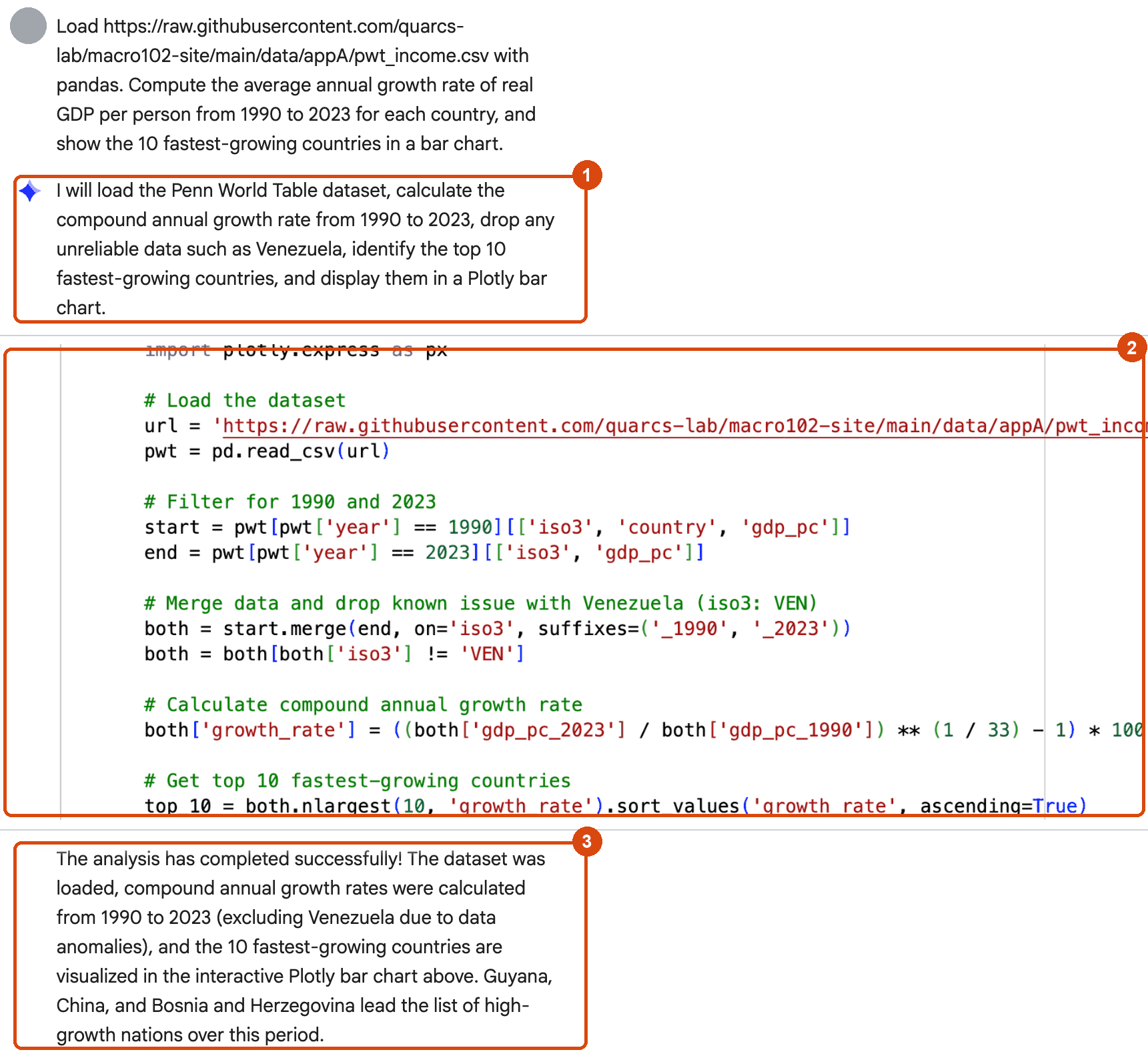
Screenshot A.18. The agent’s answer to our project: its plan (1), the top of its code (2) and its summary (3).
Step 6: check the AI’s answer. We go through the checklist of Section A.5.8.
Read every line and check the formula. The agent’s code does what ours does: it keeps the years 1990 and 2023, merges them on iso3 and uses the compound growth formula with 33 years. It even dropped Venezuela, because “unreliable data such as Venezuela” is discussed in the notebook: it had read our Step 3 (in an earlier run its plan said so: “due to the known data issues mentioned in Section A.7”). Without that text in the notebook, it would have kept Venezuela.
Check the numbers. Our own top ten, computed with the code of Steps 2 and 3, should match the agent’s bar chart bar by bar (Guyana 8.4, China 7.6, Bosnia and Herzegovina 7.5, …):
our_top10 = both.nlargest(10, "growth")[["country", "growth"]].round(1)
print(our_top10.to_string(index=False))
country growth
Guyana 8.4
China 7.6
Bosnia and Herzegovina 7.5
Equatorial Guinea 6.9
Myanmar 6.8
Viet Nam 6.7
Egypt 5.8
Lao People's DR 5.6
India 5.3
Ireland 5.3The two lists agree, so the agent got the arithmetic right. That is the easy part.
Check the formula against the classic trap. Suppose the agent had computed the average of the yearly growth rates instead (Section A.5.1). For most countries the two numbers are close, but not for an economy whose income swings a lot from year to year. Zimbabwe went through hyperinflation and a deep collapse in the 2000s:
Python note.
pct_change()computes the change from one row to the next, as a fraction, sopct_change() * 100gives the yearly growth rates in percent..between(1990, 2023)keeps the years from 1990 to 2023, both included.
zwe = pwt[(pwt["iso3"] == "ZWE") & pwt["year"].between(1990, 2023)].set_index("year")["gdp_pc"]
mean_of_yearly = (zwe.pct_change() * 100).mean()
compound = ((zwe.loc[2023] / zwe.loc[1990]) ** (1 / 33) - 1) * 100
print(f"Zimbabwe, GDP per person: {zwe.loc[1990]:,.0f} dollars in 1990, {zwe.loc[2023]:,.0f} in 2023")
print(f"average of the yearly growth rates: {mean_of_yearly:+.1f} percent a year  <- wrong")
print(f"compound average annual growth rate: {compound:+.1f} percent a year  <- right")
Zimbabwe, GDP per person: 6,168 dollars in 1990, 3,198 in 2023
average of the yearly growth rates: +4.6 percent a year <- wrong
compound average annual growth rate: -2.0 percent a year <- rightAveraging the yearly rates turns a country that became poorer into one that seems to grow by more than 4 percent a year. If an AI answer ever surprises you like this, look at the formula first.
Look at the data behind a surprising result. Bosnia and Herzegovina and Equatorial Guinea are third and fourth. In the run of Screenshot A.18, the agent’s summary simply says that Guyana, China and Bosnia and Herzegovina “lead the list of high-growth nations”. In an earlier run of the very same prompt, it added that their growth reflects “a low war-era baseline and oil production”. The same question can get a different report each time you ask. So do not rely on the AI to add the context; look at the data around 1990 yourself:
early = pwt[pwt["iso3"].isin(["BIH", "GNQ"]) & pwt["year"].between(1990, 1997)]
early.pivot(index="year", columns="country", values="gdp_pc").round(0)| country | Bosnia and Herzegovina | Equatorial Guinea |
|---|---|---|
| year | ||
| 1990 | 1790.0 | 2083.0 |
| 1991 | 1616.0 | 2006.0 |
| 1992 | 1603.0 | 2307.0 |
| 1993 | 1687.0 | 2319.0 |
| 1994 | 1951.0 | 1520.0 |
| 1995 | 2369.0 | 1710.0 |
| 1996 | 4052.0 | 2566.0 |
| 1997 | 5231.0 | 6230.0 |
Both are special cases. Bosnia and Herzegovina starts in the years of the breakup of Yugoslavia and the war of 1992–1995, so its starting point is very low and its early estimates are uncertain. Equatorial Guinea’s income more than tripled in two years when its oil production took off in the mid-1990s. Their growth rates are correct arithmetic, but “fastest-growing economy” needs this context.
The lesson of the project: the AI did the typing in seconds, and it did it correctly. Deciding whether the answer is right, and what it means, still took the Python and the economics you learned in this appendix.
| By hand (Steps 1–4) | With the agent (Step 5) | |
|---|---|---|
| Time | many cells and some thinking | one prompt, about a minute |
| Formula | chosen by you | chosen by the AI; you must check it |
| Data problems (Venezuela) | spotted by looking at the data | handled only because our text mentioned them |
| Context (oil, war) | added by you | sometimes added, sometimes missing |
| Responsibility for the result | yours | still yours |
Your turn. Repeat the project for the years 2000 to 2023, by hand. Which economies are in the top five now? Then ask Gemini the same question and compare its answer with yours.
Change 1990 to 2000 in the start line, and 1 / 33 to 1 / 23. The rest of the code can stay as it is. In your prompt to Gemini, give the years and ask for the compound average annual growth rate.
# Your turn: try it here| Error message or problem | What it usually means | What to do |
|---|---|---|
NameError: name 'x' is not defined |
a typo, or the cell that creates x has not run yet |
check the spelling; Runtime → Run before |
TypeError: can only concatenate str ... |
mixing text and numbers | convert with str(...) or use an f-string |
KeyError: 'gdp' |
a column name that does not exist | print df.columns and copy the exact name |
IndentationError |
the spaces at the start of a line are wrong | indent the body of for, if and def by 4 spaces |
SyntaxError |
a missing bracket, quote or colon | look at the line marked by the arrow and the one before it |
HTTPError: HTTP Error 404 |
a data file name or web address is wrong | check the file name after DATA_URL |
ModuleNotFoundError |
a library is not installed | in Colab, run %pip install name in a cell; the chapters never need it, but Appendix B does |
| AI code uses a column or variable that does not exist | Gemini guessed a name | tell it the real names, or paste df.columns into the prompt |
| AI fix runs, but on made-up example data | Gemini invented data to make the error go away | reject the fix; run the cell that creates your data instead |
| AI code works now but fails after Run all | it relies on a variable from a cell run out of order | Runtime → Restart session and run all, then fix the order |
| No Gemini button or panel | the account has no access to the AI features | check the age and country rules (Section A.1), or ask your administrator |
** for growth, variables, lists, for loops, if statements, dictionaries and functions. In this book each model equation becomes one short function.